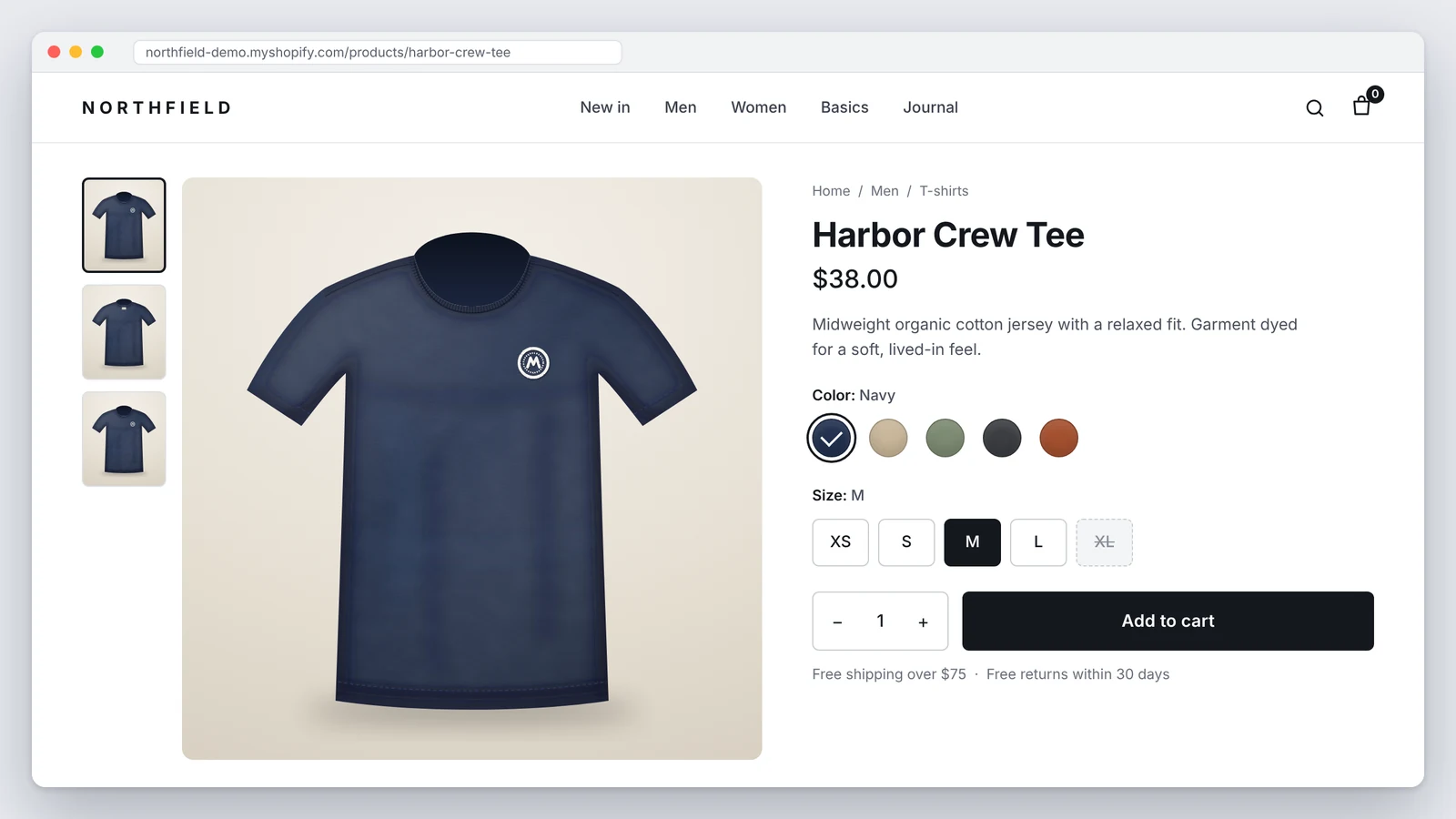
Picture a shopper who navigates with a keyboard, or listens to the page through a screen reader. They land on a product page, want a navy T-shirt in medium, and try to do four things: pick a size, make sense of the product photos, check the price, and add the shirt to the cart. On a page that looks polished, any one of those steps can quietly fail. The size buttons announce only "button". The photos have no useful description. The price changes after a selection and nobody is told. This is what Shopify product page accessibility is really about.
This guide walks through the purchase journey in order. For each step you will see what to test, what a failure looks like, and what to fix. It is written for store owners who want to check their own pages first, and to know when it makes sense to bring in an expert. The store used in the examples is a fictional test page, not a real client.
What Makes a Shopify Product Page Accessible?
An accessible product page lets someone complete the whole purchase decision, not just load without scanner errors. In practice that means a shopper can:
- Move through the page without a mouse, in a sensible order, and always see where they are.
- Understand every product image and every available option with a screen reader.
- Find the price, any sale price, the stock status and which choices are required.
- Get feedback when a variant changes, when an item is added, and when something goes wrong.
A useful technical target for testing is WCAG 2.2 Level AA. It gives you named criteria to test against, which is far more useful than a vague "make it accessible". Be careful with scores, though. A passing automated result or a single checklist does not prove a page is accessible, and neither guarantees legal compliance. They are inputs to a decision, not the decision. If you want a person to test the full journey on your theme, our Shopify accessibility audit does that by hand against WCAG.
Product Variant Selectors and Color Swatches
Variant controls are where most product pages fail first, because they are often custom components built from styled elements. Four scenarios come up again and again:
- No name. A screen reader announces "button" or "radio button" but not the color or size, so the shopper has no idea what they are choosing.
- Selection shown by color alone. A selected swatch is marked only by a slightly different border color. People with low vision or color blindness cannot tell which one is active (WCAG 1.4.1 Use of Color).
- Mouse only. Swatches respond to clicks but cannot be reached or operated with the keyboard (WCAG 2.1.1 Keyboard).
- Silent updates. Choosing a size changes the price or availability on screen, but assistive technology is never told.
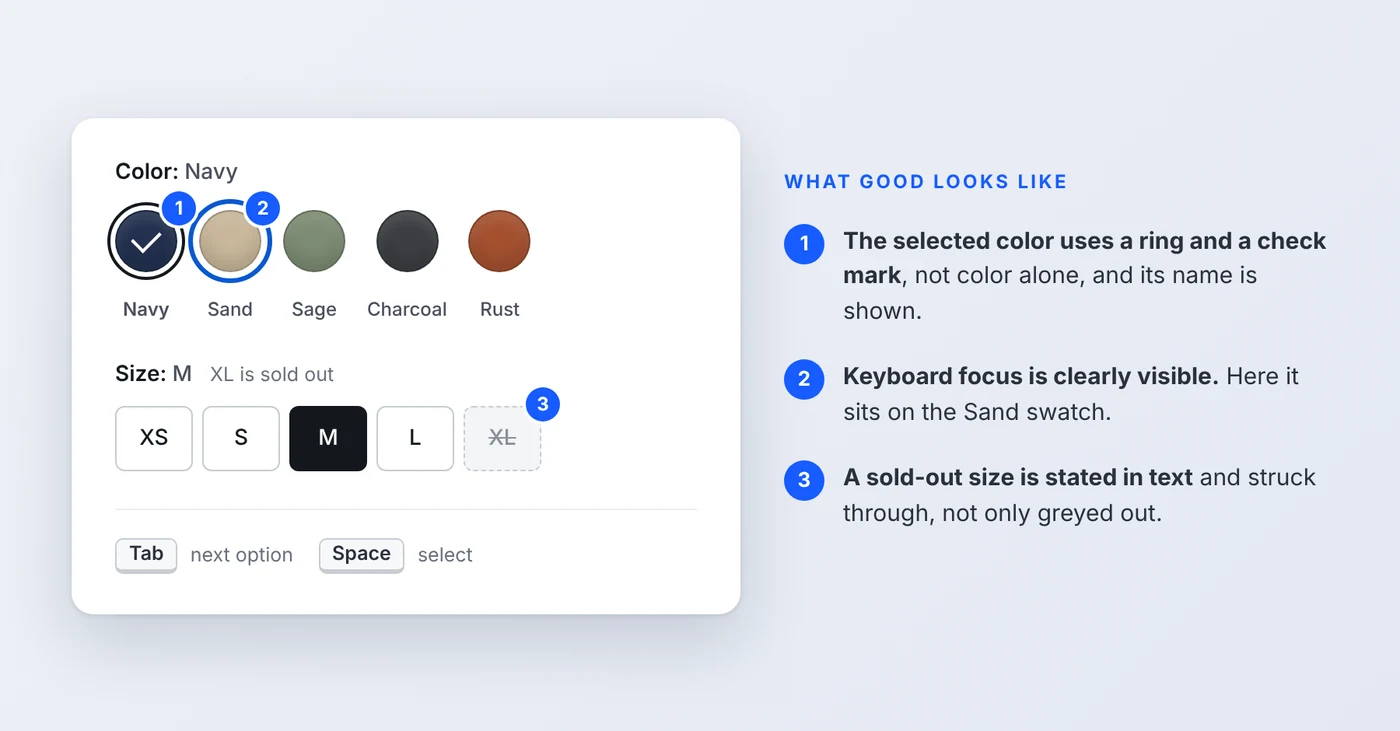
The most robust fix is to build option groups from native controls. A set of radio inputs inside a fieldset gives you grouping, names, arrow key behavior and a selected state for free. Many current themes already render option buttons this way, so check yours before rewriting anything. This is a simplified example:
Then make the state and focus visible with CSS, rather than hiding the radio and leaving nothing in its place:
A dropdown works too. A native select with a real label, such as <label for="size">Size</label>, is accessible by default and often the safest choice for long option lists. How you apply any of this depends on your theme and on the component already in place, so treat the code as a pattern, not a drop-in patch. Also note that a disabled control is skipped by keyboard focus. Put "sold out" in the visible label text instead of relying on a greyed-out style.
Swatch rings and focus outlines should also contrast enough against their background (WCAG 1.4.11 Non-text Contrast asks for 3:1). The WebAIM Contrast Checker is a quick way to check a color pair. For the wider list of checks, see our Shopify WCAG compliance checklist.
Product Images, Galleries, and Zoom Controls
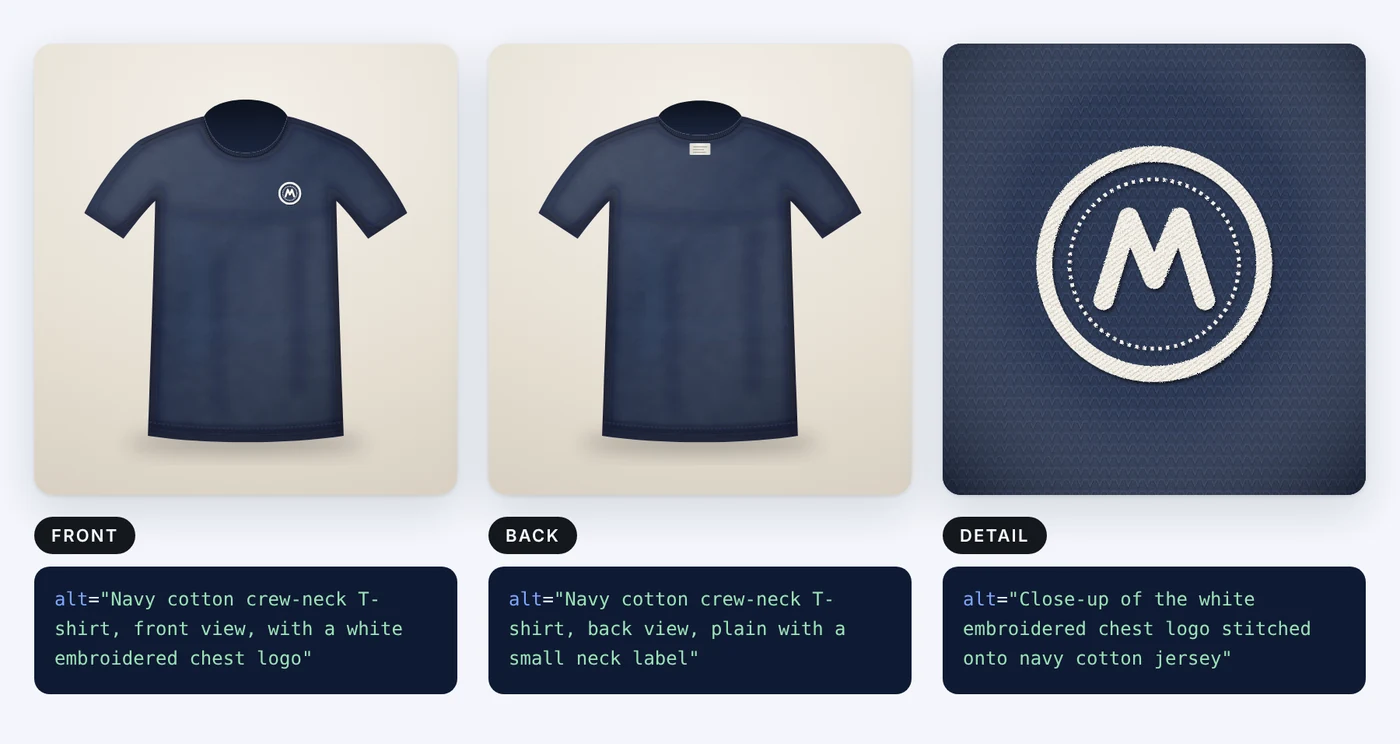
Not every image on a product page plays the same role, and the alt text should reflect that.
- Informative images show the product itself. They need a description of what is actually visible.
- Alternate views (back, side, detail) each need their own description, so a shopper can tell them apart.
- Decorative images add nothing a shopper needs and should have empty alt text (alt="") so screen readers skip them.
Describe the image in front of you, not the keywords you want to rank for. A description packed with search terms helps nobody. Skip phrases like "image of", since a screen reader already announces it as an image. This matches Shopify's own guidance that product images should have descriptive alt text and decorative ones an empty value (see the Shopify theme accessibility best practices). The criterion behind it is WCAG 1.1.1 Non-text Content.
If you want a longer walkthrough of writing alt text in the Shopify admin, see how to add alt text to Shopify product images.
Galleries and zoom add interaction on top of the images. Test them with the keyboard:
- Gallery thumbnails should be real buttons with a name such as "Show image 2 of 3: back view", not clickable images.
- Previous and next arrows need names ("Previous image", "Next image") and must work with Enter and Space.
- A zoom view that opens in a dialog should move focus into it, let you close it with Escape, and return focus to the thumbnail or button you came from.
- Anything that only appears on hover needs a keyboard equivalent.
Accessible Add-to-Cart Buttons and Purchase Forms
The add-to-cart button is the main conversion action, so it deserves the most careful testing. Check these things:
- The button has a clear accessible name. "Add to cart" is fine. An icon with no text and no label is not.
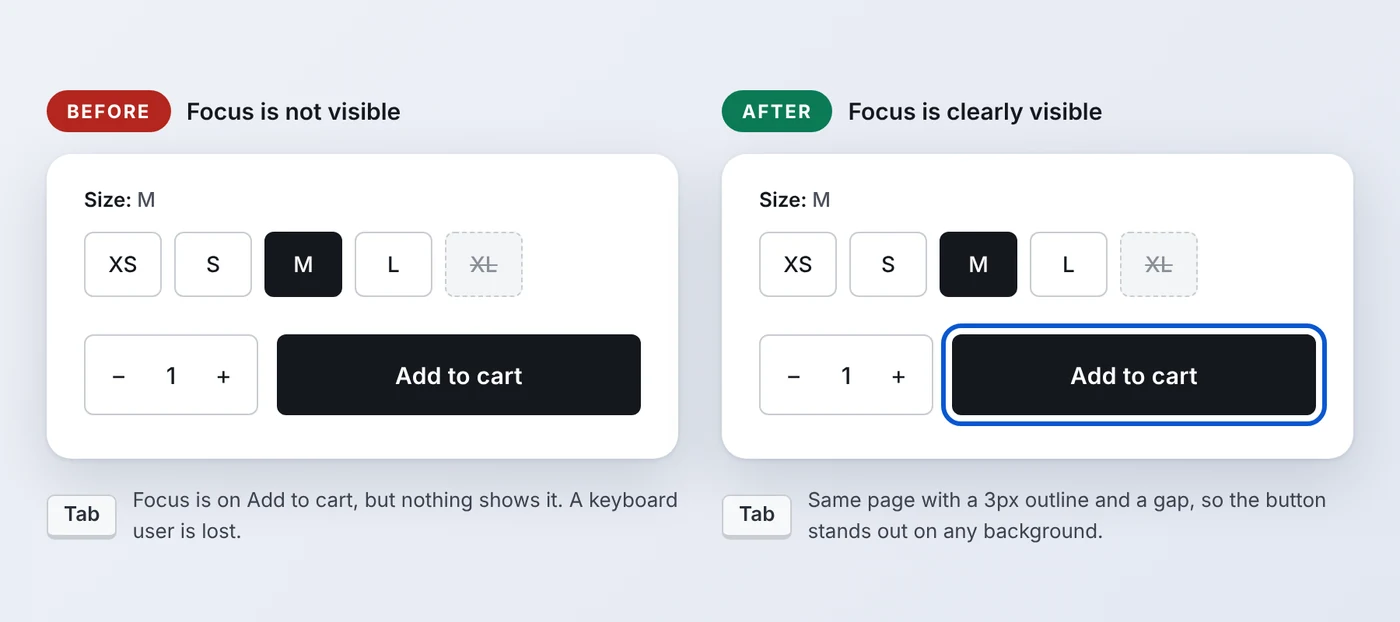
- Keyboard focus is visible, and Enter or Space activates the button.
- Quantity and any required options have proper labels, not just placeholder text or a nearby word.
- If the shopper has not chosen a required option, the page says so in text and moves them to the problem.
- After adding, the cart drawer takes focus, can be closed with Escape, and returns focus to where the shopper was.
- The shopper gets a clear confirmation that the item was added, and an equally clear message when it was not.
Here is a typical before and after for the button itself:
A native button gives you keyboard focus, Enter and Space support and the right role without extra code. That is why it beats a styled div almost every time. For the cart drawer, Shopify's guidance on drawers and modals applies: move focus into the drawer when it opens, keep it there while open, close on Escape, and return focus to the control that opened it.
Form errors deserve the same care. A red border alone does not tell a screen reader user anything. Say what went wrong in text, such as "Choose a size before adding to cart", connect it to the field and place focus on it. That covers WCAG 3.3.1 Error Identification.
Price, Availability, and Dynamic Product Updates
Prices and stock status change as shoppers make choices. A sighted shopper sees the number change. A screen reader user hears nothing unless the page tells them. Consider this common case: the shopper picks size L, the price on screen goes from $38.00 to $41.00, and the new value is never announced. They add the item to the cart and find out later.
Shopify's theme guidance says that when price or availability changes on variant selection, the change must also reach screen readers, and that live regions are the usual way to communicate dynamic updates. WCAG 4.1.3 Status Messages is the related criterion. The key is restraint. Use one polite status region and update it once, after the change settles, with the information that matters:
Do not wrap the whole product form in a live region or announce every small change. That floods the shopper with noise and is often worse than saying nothing. Sale prices should also be understandable in text, for example "Sale price $29.00, regular price $38.00", not only through a struck-through number.
How to Test a Shopify Product Page for Accessibility
You can run a useful first pass in about 20 minutes with no special software. Work through these steps on a real product page:
- Press Tab and Shift+Tab through the whole page, from the top of the header to the footer.
- Operate every variant selector and every gallery control with the keyboard only.
- Confirm you can always see where focus is, and that the order matches the visual order.
- Turn on a screen reader (NVDA on Windows or VoiceOver on Mac) and check the names and selected states of options.
- Change variants and listen for whether the new price and availability are communicated.
- Test the add-to-cart flow, including the error case where a required option is missing, and the cart drawer.
- Run an automated scan to catch more issues, then verify each finding by hand.
Automated testing is worth doing, but it finds only some problems. It cannot tell you whether a swatch has a meaningful name, whether alt text is accurate, or whether the focus order makes sense, and it cannot establish that a page conforms to WCAG on its own. Our website accessibility audit guide explains how scanners and manual testing fit together.
Common Shopify Product Page Accessibility Mistakes
These are the problems we would check first. Whether a specific case fails a criterion depends on the exact implementation, so treat the last column as a starting point for review, not a verdict.
| Issue | What the shopper experiences | Recommended fix | Criteria to check |
|---|---|---|---|
| Unlabeled swatches | Hears "button" with no color name | Use labeled radio inputs or add visible and accessible names | 4.1.2 Name, Role, Value; 1.4.1 Use of Color |
| Poor image descriptions | Hears "blue shirt" or a file name | Describe the actual view; use empty alt for decorative images | 1.1.1 Non-text Content |
| Gallery not keyboard operable | Cannot change or zoom the image | Use real buttons with names; manage focus in zoom dialogs | 2.1.1 Keyboard |
| Invisible focus indicator | Cannot tell which control is active | Add a clear outline with enough contrast and spacing | 2.4.7 Focus Visible; 1.4.11 Non-text Contrast |
| Unannounced variant updates | Price or stock changes in silence | Update one polite status message after the change | 4.1.3 Status Messages |
| Unclear form errors | Add to cart fails with no explanation | State the error in text, link it to the field, move focus | 3.3.1 Error Identification; 3.3.2 Labels or Instructions |
Fixes here are often small. The harder part is finding every occurrence across templates, apps and theme updates, which is where a structured review pays off.
When Should You Get a Professional Shopify Accessibility Audit?
DIY testing is a good start. It is worth getting expert help when:
- Your theme is custom or heavily edited.
- Products have complex options, bundles or custom pickers.
- A third-party app supplies your gallery, swatches or cart drawer.
- Issues keep coming back after theme or app updates.
- Basic fixes have not resolved the problems you found.
The strongest approach combines automated checks with manual keyboard and screen reader testing, followed by fixes that are verified afterwards. That is how Shopify accessibility audit services from AccessoraX work: we test your real product pages, document each finding with evidence, fix what we can in your theme code and retest.
Want us to test your product pages?
We check variant selectors, galleries, price updates and the add-to-cart flow by hand, then send a report with evidence and fixes. Start with a free scan to see what an automated check finds, or ask for a full audit.
Request a Shopify accessibility auditFrequently Asked Questions
How do I make Shopify product variants accessible?
Use native controls where you can, such as radio inputs in a fieldset or a labeled select. Give every option a name, show the selected state with more than color, keep focus visible and make sure price and availability changes are announced.
Do Shopify product images need alt text?
Yes, informative product images do. Describe what is actually shown, including the view. Purely decorative images should have empty alt text so screen readers skip them.
How do I test a product page without a mouse?
Put the mouse aside and use Tab, Shift+Tab, Enter, Space, the arrow keys and Escape. You should be able to pick every option, use the gallery and add the item to the cart, and always see where focus is.
Can an accessibility app fix every product page issue?
No. Apps and overlays cannot reliably repair problems in your theme code, such as unlabeled controls or broken focus handling, and some add new problems. Fixes belong in the theme and components themselves.
Does an accessible theme guarantee an accessible store?
No. A well-built theme is a strong start, but customizations, apps, product content and added sections can all introduce barriers. Test your own pages, not just the theme demo.
How often should Shopify product pages be retested?
Retest after any theme update, new app, or change to product templates, and at least a few times a year. Pages that change often, such as launches and sales, deserve extra attention.
Related reading
- Shopify accessibility audit services
- Shopify WCAG compliance checklist
- How to add alt text to Shopify product images
- Website accessibility audit: a practical beginner's guide
- An example of accessibility audit findings
- Shopify accessibility statement: what to include, with a template
- Color contrast accessibility for Shopify stores: WCAG ratios and fixes
Last updated: October 2026. General information, not legal advice. The store, screenshots and examples in this article are illustrations from a fictional test page. Accessibility is an ongoing process, and no audit, tool or service can guarantee immunity from legal claims.