Why Accessibility Color Contrast Matters on a Shopify Store
Accessibility color contrast is the difference in brightness between text, or a control, and the color behind it. When it is too low, a customer with low vision, or anyone shopping on a phone in bright sunlight, cannot read your price, your shipping note or the label on your Add to cart button.
It is also the most common failure on the web. In the 2026 WebAIM Million report, low contrast text appeared on 83.9% of the home pages analysed, making it the most commonly detected issue. Shopify stores are no exception. Themes ship with pale grey secondary text, brand colors get applied to buttons without a check, and merchants place text on photos that change every season.
This guide goes straight to the places contrast breaks on a store: buttons, prices, sale badges, text over images, form fields and focus states. The example colors were measured, so you can reuse the numbers. Fixes are split into theme settings, which need no code, and code-level changes. If you would rather have the whole store tested, our Shopify accessibility audit checks contrast by hand and with tools.
WCAG Color Contrast Ratios: What the Standard Requires
WCAG 2.2 Level AA, which uses the same ratios as 2.1, has two contrast criteria that matter for a store, plus one that stops color doing the job alone.
| Criterion | What it covers | Minimum at Level AA |
|---|---|---|
| 1.4.3 Contrast (Minimum) | Text and images of text | 4.5:1, or 3:1 for large text |
| 1.4.11 Non-text Contrast | Parts of controls needed to identify them or see their state, and graphics needed to understand content | 3:1 against adjacent colors |
| 1.4.1 Use of Color | Information shown by color alone | Add text, a symbol or a pattern |
| 1.4.6 Contrast (Enhanced) | Text, at Level AAA | Not required at AA. 7:1, or 4.5:1 for large text |
A few details decide whether a color pair passes:
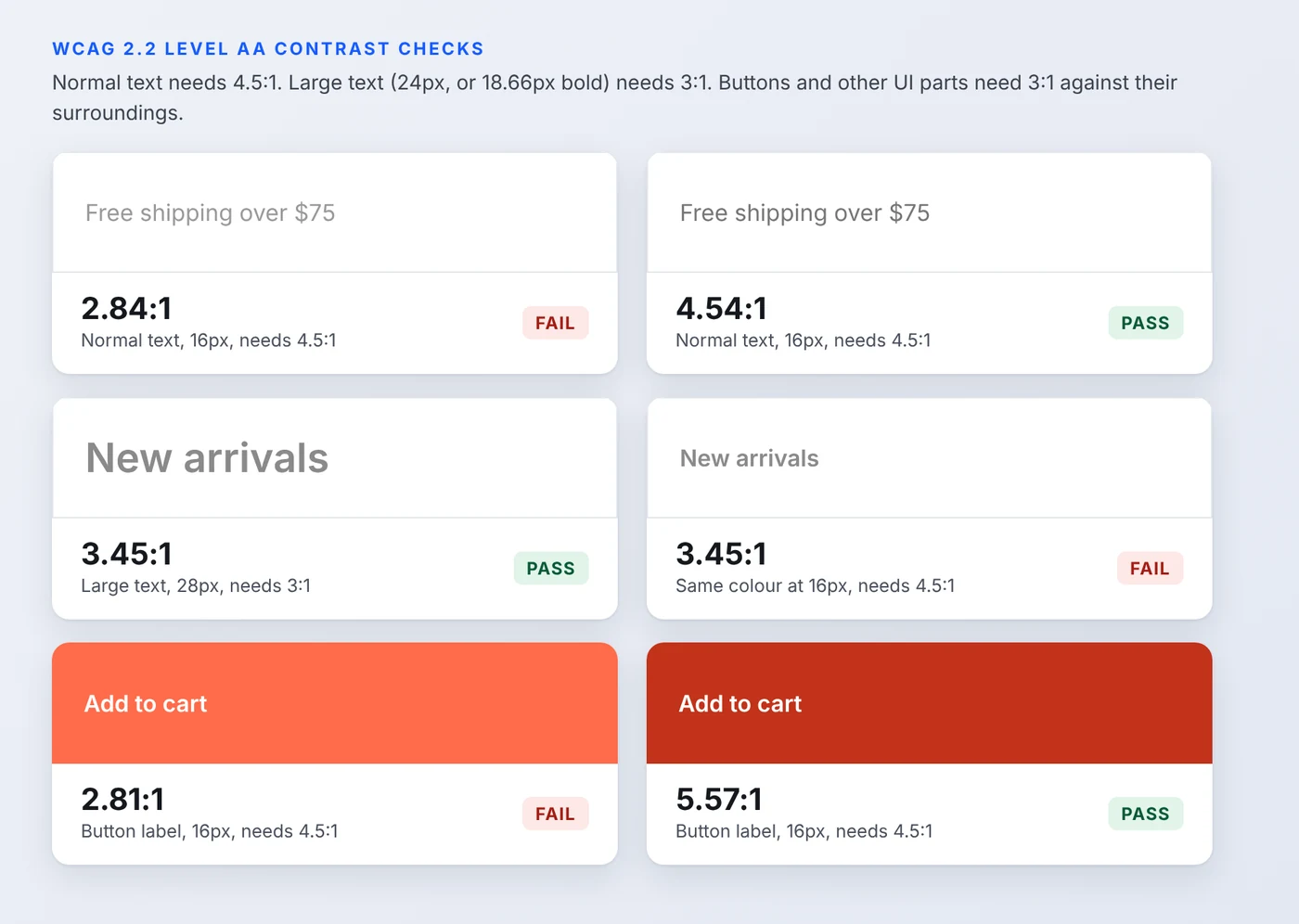
- Large text means at least 24px, or at least 18.66px if bold. Body copy, prices and most button labels are not large.
- No rounding up. A ratio of 4.49:1 fails. Tools show the ratio calculated from the relative luminance of the two colors.
- Exempt: text in disabled controls, purely decorative text and logos. Placeholder text, prices, badges and footer links are not exempt.
- States count. Hover, focus, selected and error states have to pass as well as the default look.
The full wording is in the W3C's guides to Contrast (Minimum) and Non-text Contrast.
How to Measure Contrast on Your Store
- Browser DevTools. Inspect an element, click its color swatch in the Styles pane, and Chrome shows the contrast ratio and whether it meets AA.
- WebAIM Contrast Checker. Paste two hex values and read the ratio for normal text, large text and UI components.
- Colour Contrast Analyser. A free desktop tool with an eyedropper, useful for colors on images or inside apps.
- axe DevTools or Lighthouse. Flag text contrast failures across a whole page in one run.
Automated checks are quick but limited. They struggle with text over images and gradients, they only see the state the page is in when you run them, and they cannot judge whether a color pair is decorative. Check hover, focus, selected, error and sold out states by hand, and test at the screen widths where text moves over a different part of an image.
Where Contrast Fails on a Shopify Store
Buttons and calls to action
The classic failure is white text on a bright brand color. White on a coral such as #ff6b4a measures 2.81:1, well under the 4.5:1 a 16px label needs. You can keep the brand color and still pass in two ways: darken the button to #c2321a, which gives 5.57:1 with a white label, or keep the coral and switch the label to #1a1a1a, which gives 6.17:1.
Outline buttons need the label to pass at 4.5:1. If the border is what tells a customer the shape is a button, that border needs 3:1 as well. Also check hover: a lighter hover color is a common way to drop a passing button below the line.
Prices, compare-at prices and sale badges
Sale pricing packs several contrast problems into a small space. The figure below shows a product card with common theme colors on the left and darker replacements on the right, with the ratio for each element.
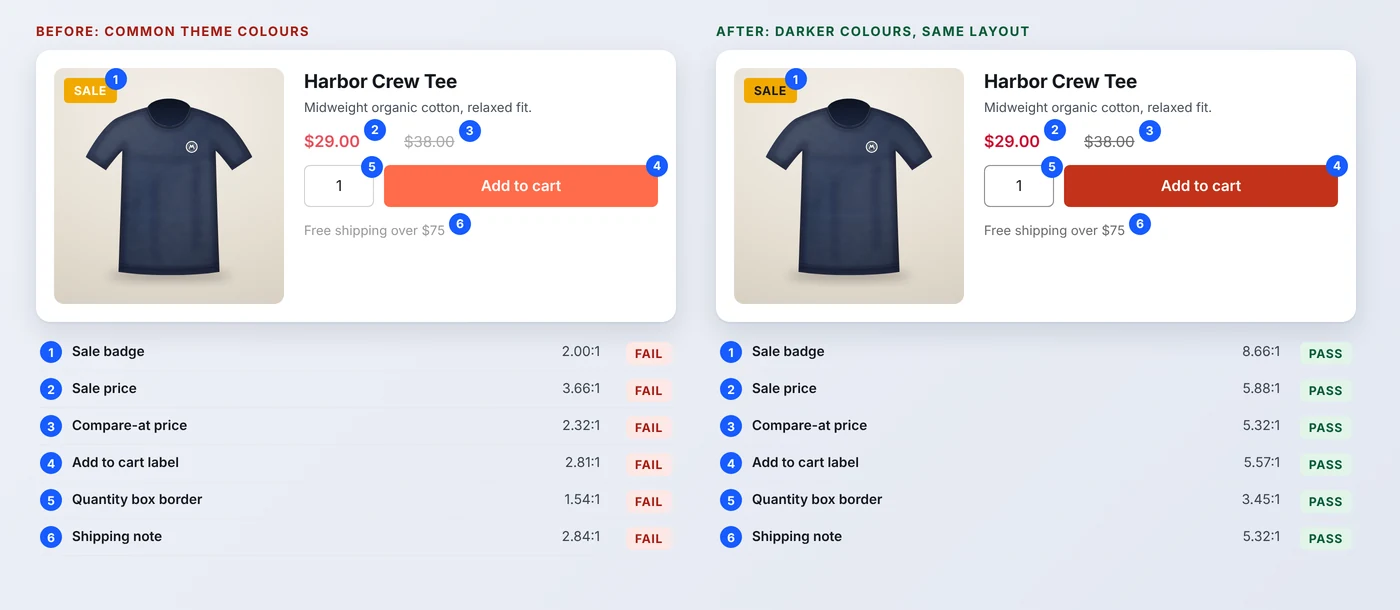
- Sale badge. White on a yellow or amber badge measures 2.00:1. Dark text on the same amber gives 8.66:1.
- Sale price. A light red such as #e8505b on white is 3.66:1. Moving to #c8102e gives 5.88:1.
- Compare-at price. A pale grey like #aaaaaa is 2.32:1. #6b6b6b gives 5.32:1.
The strike-through on a compare-at price is visual only. Many themes add hidden text such as Regular price and Sale price for screen reader users, so check that yours does, and do not rely on red alone to show that something is on sale. Our guide to Shopify product page accessibility covers the rest of the product page.
Text over images
Hero banners and collection tiles are where merchants lose control of contrast, because the background is a photo. WCAG measures text against what is directly behind it, so the test is the lightest or busiest part of the image under the words, not the average.
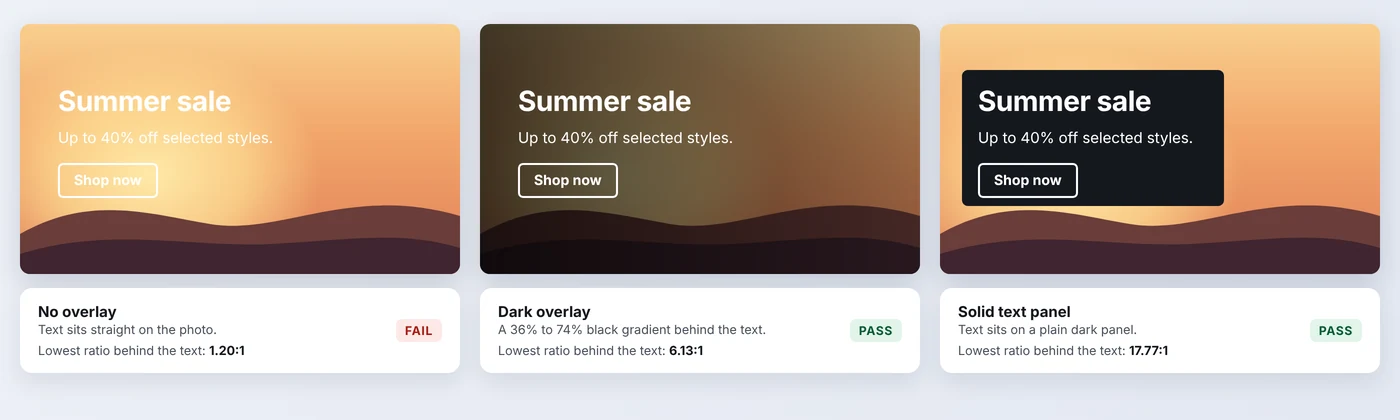
There are three dependable fixes. Add a dark overlay and raise it until the text passes on the lightest area. Put the text on a solid or near-solid panel. Or move the words out of the image into the content area beside or below it. A text shadow is not a fix, because tools and the standard measure the colors, not the shadow. Test on mobile as well: the crop changes, and so does what sits behind the text. If your team swaps hero images each season, re-check every time.
Form fields, placeholders and error messages
Placeholder text is text, so it needs 4.5:1, and browser defaults are often lighter than that. Input borders are covered by 1.4.11: a pale #d0d0d0 border on white measures 1.54:1, while #8a8a8a gives 3.45:1, which clears 3:1. Error messages need the same 4.5:1 as other text and should say what went wrong in words, not only turn the border red.
Swatches, icons and focus rings
Color swatches rely on color by nature, so the selected one needs a second cue such as a ring or check mark, and that ring needs 3:1 against what it touches. Cart, search and close icons are graphics that carry meaning and also need 3:1. Keyboard focus is the one people forget: a blue ring of #0b57d0 measures 6.38:1 on white but only 2.78:1 on a dark footer, so dark sections need a light focus color.
Announcement bars, footers and apps
Announcement bars often put light grey text on a brand color. Footers put mid-grey links on near-black. Both are quick to check and often fail. Third-party apps are the hardest part, because reviews, popups, chat buttons and cookie banners come with their own colors that your theme settings do not reach. Test each one on a live page and check the app's own settings for color options.
Fix Color Contrast in Shopify Theme Settings
Most current themes, including Dawn and the many themes built on it, group colors into color schemes. A scheme sets a background, text color, button color and button label color, and each section picks one. The exact setting names vary by theme, so test the actual pairs rather than trusting a setting label.
- In the theme editor, open Theme settings and then Colors, and list every color scheme your store uses.
- For each scheme, test text on background, button label on button background, outline button text and border, and link color on background.
- Check where each scheme is used: announcement bar, hero, product page, footer. A pairing that passes on white can fail on a tinted section.
- Open image banners and slideshows. Many themes have an image overlay opacity setting. Raise it until text passes on the lightest part of the image, then check mobile.
- Review badge colors. Many themes have separate settings for sale and sold out badges.
- Save, preview, and check hover, focus and error states.
Duplicate your theme first and work on the copy. When you adjust a color, darken it rather than changing its hue, so the brand look holds. #999999 on white measures 2.84:1. #767676 is the lightest grey that passes, at 4.54:1, but it is better to land a little above the line. #6b6b6b gives 5.32:1 and survives small differences between screens. Where a brand color cannot be darkened, change the text that sits on it instead.
Theme settings will not reach colors that are hard-coded in custom sections, app blocks or older themes. That is when the fix moves into the code.
Code-Level Fixes for Shopify Theme Contrast
When colors are written directly into the stylesheet or section files, fix them at the source. Work on a duplicate theme, search the CSS for the values that failed, and use variables so each color lives in one place. The selector names below are examples. Yours will differ.
For text over an image, add the overlay in CSS so it applies to every image placed in that section:
For placeholders and focus, set the colors yourself and give dark sections a light ring:
Test again after every change, because one variable can touch many places. This is what native code accessibility means in practice: correcting the theme itself instead of layering a widget over it. A widget with a high contrast mode does not change the colors every visitor sees.
Shopify Color Contrast Checklist
| Element | What to check | Minimum |
|---|---|---|
| Body and secondary text | Muted greys, captions, footer text | 4.5:1 |
| Buttons and links | Label on background, plus hover and focus states | 4.5:1 |
| Prices and badges | Sale, compare-at and sold out text | 4.5:1 |
| Text over images | Lowest ratio behind the text, desktop and mobile | 4.5:1 |
| Form fields | Placeholder text, then input borders | 4.5:1 for text, 3:1 for borders |
| Icons, swatches and focus rings | Cart and search icons, selected swatch, keyboard focus | 3:1 |
| Apps and banners | Popups, reviews, chat, cookie banner | Same as above |
When to Get a Contrast Review
You can fix the obvious failures yourself with the steps above. The harder part is finding all of them: every color scheme, every state, every app and every image crop. Contrast is also one of many WCAG criteria a store has to meet, so it makes sense to review it with the rest. Our Shopify WCAG compliance service tests against 1.4.3, 1.4.11 and the other criteria and fixes what it finds, and the Shopify accessibility audit is the place to start if you only want the findings.
Want your store's contrast tested properly?
AccessoraX tests your theme, apps and key pages by hand and with tools, then gives you a prioritised list of what to fix.
Explore our Shopify accessibility auditFrequently Asked Questions
What is the minimum color contrast ratio for accessibility?
Under WCAG 2.2 Level AA, normal text needs a contrast ratio of at least 4.5:1 against its background, and large text needs at least 3:1. Parts of user interface controls and meaningful graphics, such as input borders and icons, need at least 3:1. The same ratios apply in WCAG 2.1.
What counts as large text in WCAG?
Large text is at least 24px (18pt), or at least 18.66px (14pt) if it is bold. Anything smaller, including most body copy, prices and button labels, falls under the 4.5:1 requirement.
Does placeholder text need to meet the contrast ratio?
Yes. Placeholder text is text, and it is not exempt, so it needs 4.5:1 against the field background. Browser default placeholder colors are often lighter than that, so set the color yourself. Placeholder text should also not replace a visible label.
Do sale badges, prices and compare-at prices need to meet contrast requirements?
Yes. They are text, so they need 4.5:1 unless they meet the large text size. A struck-through compare-at price still has to be readable, and the sale state should not be shown by color alone.
How do I check contrast for text over an image?
Measure the text color against the lightest or most similar part of the image behind the text, because that is where it is hardest to read. Check it on desktop and mobile, since the image crop changes. If the ratio is too low, add an overlay, place the text on a solid panel or move it off the image.
Are disabled buttons and sold out options exempt from contrast rules?
Components that are inactive, such as a disabled button, are exempt from the contrast criteria. Customers still need to understand why an option is unavailable, so state it in text, for example Sold out, rather than relying on faded color.
Is a logo exempt from color contrast requirements?
Yes. Text that is part of a logo or brand name is exempt from the 1.4.3 contrast requirement. Ordinary text near the logo, such as a tagline written as page text, is not.
Can an accessibility widget fix color contrast on my Shopify store?
A widget can offer a high contrast mode, but it does not fix the colors in your theme, and visitors have to find and switch it on. The dependable fix is to correct the colors in theme settings and code.
Related reading
Last updated: 27 October 2026. The WebAIM figure comes from the 2026 WebAIM Million report. Contrast ratios in the examples were calculated with the WCAG formula and shown without rounding up. Passing a contrast check does not by itself make a store accessible or compliant, and general information here is not legal advice.