Shopify apps can add valuable features to an online store, but third-party code can also introduce accessibility problems.
Popups, review widgets, chat tools, filters, search features, subscription tools, and other apps can affect keyboard navigation, focus management, accessible names, screen-reader announcements, colour contrast, and other WCAG requirements.
The important question is not simply whether an app is "accessible." It is whether the app works accessibly in the context of your Shopify theme, other installed apps, and your store's customer journey.
This guide explains the most common accessibility problems Shopify apps can introduce, how to test them, and what you can do when an app creates WCAG issues.
Why Shopify Apps Break Accessibility (3 Reasons)
Reason 1: Developers Don't Test for Accessibility
Most app developers:
- Don't test with keyboard navigation
- Don't test with screen readers
- Don't run WCAG audits
- Don't understand accessibility requirements
They prioritize features and speed. Accessibility takes a backseat.
Result: Inaccessible apps.
Reason 2: Apps Override Shopify's Default Behavior
Shopify's default checkout is accessible.
But when you install apps, they often:
- Inject custom JavaScript
- Override CSS styling
- Add new HTML elements
- Replace default components
These overrides frequently break accessibility.
Reason 3: Responsibility Sits With the Store Owner
Store owners are generally responsible for the accessibility of their customer-facing website, even when third-party code contributes to an issue.
In practice that means an accessibility problem introduced by an app still needs addressing on your store, whether through configuration, code remediation, or replacing the app.
This is why choosing accessible apps is critical.
How to Test a Shopify App for Accessibility
Before installing an app on a production store, test the app's most important user interactions.
At minimum, check:
1. Keyboard navigation
Can users reach and operate every interactive element without a mouse?
2. Focus management
When a modal, drawer, popup, or menu opens, does focus move appropriately?
3. Accessible names
Do buttons, form fields, links, and controls have meaningful accessible names?
4. Screen-reader announcements
Are dynamically loaded results, errors, dialogs, and status changes communicated?
5. Colour and contrast
Are text, controls, focus indicators, and important visual information distinguishable?
6. Mobile interactions
Do touch controls and responsive layouts remain usable at smaller screen sizes?
7. App and theme interaction
Does the app introduce problems when combined with your current Shopify theme and other installed apps?
Automated tools can help identify some problems, but they do not replace keyboard, screen-reader, and interaction testing.
If you would rather have this done for you across every installed app, a full Shopify accessibility audit covers each one individually alongside your theme and customer journeys.
The App Accessibility Problem (In Numbers)
Statistics on Shopify app accessibility:
These figures are drawn from the stores we audit rather than published research, so treat them as indicative. The underlying standard being tested against in each case is Shopify WCAG compliance at Level AA.
- Average Shopify store has 8-12 apps installed
- Likelihood that at least one is breaking accessibility: 95%+
Translation: If you have more than 2-3 apps installed, at least one is probably breaking your accessibility.
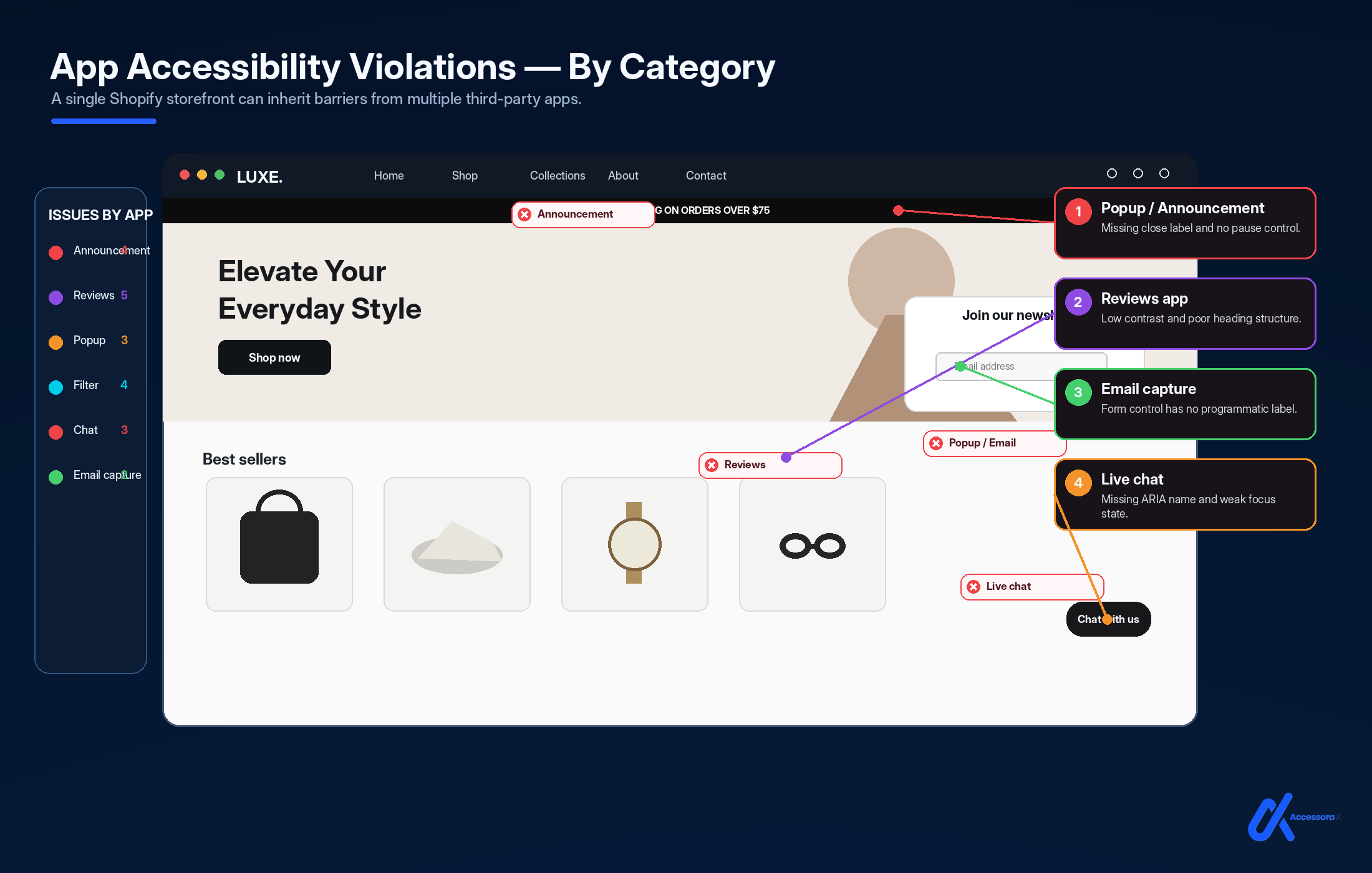
Category 1: Review & Rating Apps (WCAG 1.4.1, 2.1.1)
Apps in this category
- Yotpo Reviews
- Judge.me
- Trustpilot Widget
- Reviews.io
- ProductReviews
Violation: Color as Only Indicator
Problem: Star ratings shown only as colored stars. No text equivalent.
Yellow stars = 5-star rating. Gray stars = 1-star rating. Colorblind users can't tell the difference.
Violation: Rating Input Not Keyboard Accessible
Problem: Click stars to rate. Can't navigate with keyboard.
Violation: Comments Section Not Screen Reader Friendly
Problem: Review text doesn't associate with reviewer name or date.
Screen readers read: "John" ... "5 stars" ... "Great product!" (disconnected)
Should read: "5-star review from John: Great product!"
Accessible alternatives
- Judge.me (newer versions improved)
- Trustpilot (updated widget)
- Write custom review system with accessibility in mind
Risk level: HIGH visible on every product page
Category 2: Subscription Apps (WCAG 1.3.1, 2.1.1)
Apps in this category
- ReCharge
- Subbly
- Boldly Subscribe
- Subscription app by Bold
- Loop Subscriptions
Violation: Subscription Options Not Properly Labeled
Problem: Subscription tiers shown as buttons without clear labels. "Monthly" button shows only price, not what "monthly" means.
Violation: Subscription Frequency Selection Not Keyboard Accessible
Problem: Can't select subscription frequency with keyboard. Dropdowns require mouse.
Violation: Saving Information Not Announced
Problem: User clicks "Subscribe" button. Nothing happens visually for 2 seconds (processing). Screen reader users have no idea if it worked.
Risk level: HIGH blocks purchase workflow
Category 3: Popup & Modal Apps (WCAG 2.1.2)
Apps in this category
- Yotpo Pop-ups
- Klaviyo Forms
- Privy
- Sumo
- OptinMonster
Violation: Modal Keyboard Trap
Problem: Pop-up appears. User presses Tab but focus stays outside modal. User is trapped, can't close pop-up.
Violation: Pop-up Doesn't Announce Itself
Problem: Pop-up appears but screen readers don't announce it. Users don't know a modal opened.
Violation: Form Inside Pop-up Not Labeled
Problem: Form fields inside pop-up lack labels. Screen readers can't identify fields.
Risk level: CRITICAL blocks newsletter signup, discounts
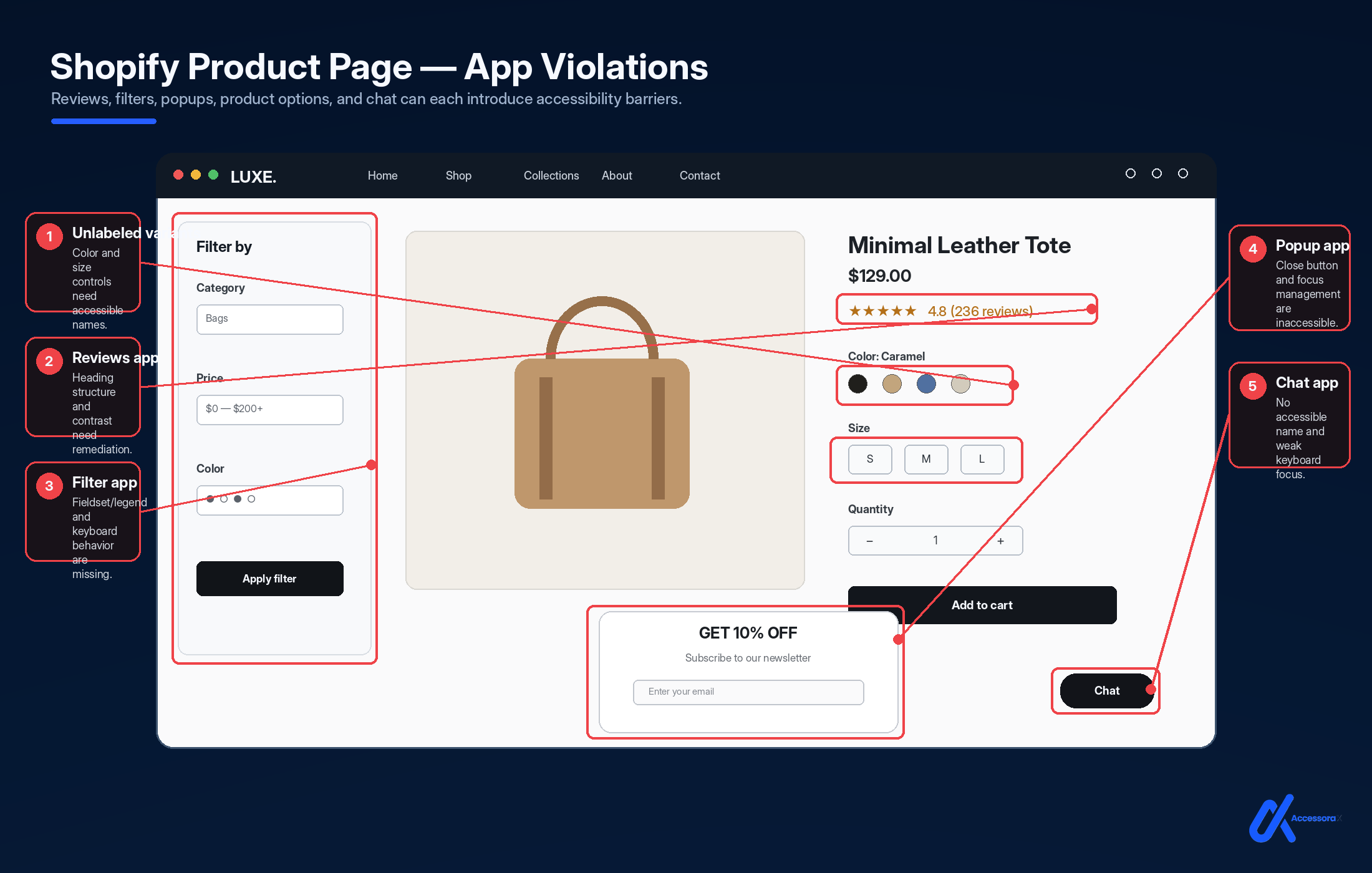
Category 4: Live Chat & Messaging Apps (WCAG 2.1.2, 4.1.2)
Apps in this category
- Gorgias
- Zendesk Chat
- Intercom
- Olark
- Drift
Violation: Chat Widget Keyboard Trap
Problem: Chat widget button opens chat. User presses Tab. Focus gets stuck in chat widget. Can't Tab out.
Fix: Implement proper focus management (as shown in Popup section)
Violation: New Messages Not Announced
Problem: Support agent sends message. Screen reader users don't hear it. Chat silently receives message.
Violation: Chat Minimize Not Keyboard Accessible
Problem: Can only minimize chat by clicking X button. Keyboard users can't minimize.
Violation: Chat Blocks Main Content
Problem: Chat widget positioned over important content. No way to move/hide it.
Risk level: HIGH blocks access to content
Category 5: Upsell & Product Recommendation Apps (WCAG 2.1.1)
Apps in this category
- Rebuy
- Kenshoo
- Bold Upsell
- LimeSpot
- Frequently Bought Together apps
Violation: Upsell Modal Not Keyboard Accessible
Problem: "Frequently Bought Together" modal appears. Can't navigate or close with keyboard.
Fix: Same modal focus management as popups
Violation: Product Selection Not Clear
Problem: Checkboxes to add upsell products. Checkboxes not properly labeled. Screen readers don't announce what's being added.
Violation: Add Button Not Reachable
Problem: Upsell modal appears but "Add" button can't be reached with Tab.
Risk level: MEDIUM affects revenue but not core shopping
Category 6: Product Filter & Search Apps (WCAG 2.1.1)
Apps in this category
- Hulkfilters
- Flex Collections
- Algolia Search
- Topsearch
- Mfiltered
Violation: Filter Dropdown Not Keyboard Accessible
Problem: Click dropdown to open filters. Can't open with keyboard. Can't Tab through filter options.
Violation: Search Results Not Announced
Problem: User types in search. Results load. Screen readers don't announce how many results found. Users don't know if search worked.
Violation: Filter Updates Not Announced
Problem: User selects filter. Page updates silently. Screen reader users don't know results changed.
Risk level: MEDIUM affects user experience
Category 7: Mega Menu & Navigation Apps (WCAG 2.1.1)
Apps in this category
- Most theme mega menus (not technically apps but similar issue)
- Advanced navigation apps
- Custom menu builders
Violation: Dropdown Only Works with Mouse Hover
Problem: Mega menu requires mouse hover. Can't open with keyboard.
Violation: Mega Menu Traps Focus
Problem: Mega menu opens. User Tabs through items. Gets stuck in menu, can't escape with keyboard.
Fix: Ensure Escape key closes menu and returns focus
Violation: Menu Items Not Labeled
Problem: Navigation items don't clearly indicate they have submenus.
Risk level: CRITICAL blocks navigation
Category 8: Product Gallery & Image Apps (WCAG 1.1.1, 2.1.1)
Apps in this category
- Photo gallery apps
- Image zoom apps
- Image slider apps
- Lightbox apps
Violation: Gallery Not Keyboard Accessible
Problem: Next/Previous buttons only work with mouse. Can't navigate gallery with keyboard.
Violation: Zoom Feature Not Accessible
Problem: Double-click to zoom image. Can't zoom with keyboard.
Violation: Alternative Text for All Views
Problem: First image has alt text. Second and third images don't.
Risk level: HIGH blocks product visibility for blind users
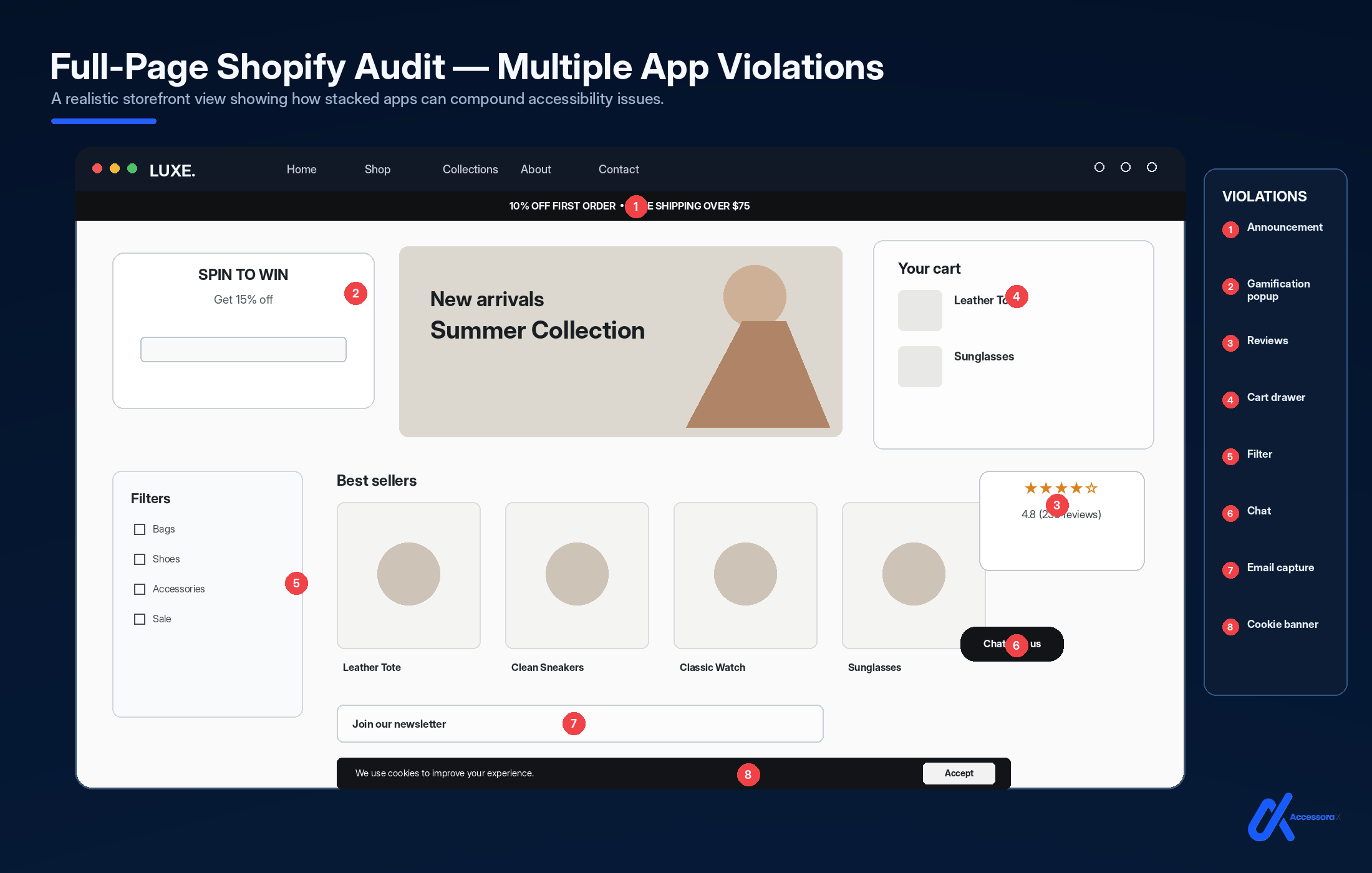
Category 9: Cookie Banner & Consent Apps (WCAG 2.1.1, 3.3.1)
Apps in this category
- Cookiebot
- OneTrust
- Usercentrics
- CookieYes
- Cookie Notice apps
Violation: Cookie Banner Keyboard Trap
Problem: Cookie consent banner appears. User can't Tab to "Accept" or "Reject" buttons. Focus trapped in banner.
Violation: Banner Options Not Clear
Problem: "Accept," "Reject," "Manage" buttons but user doesn't know what each does. Clicking wrong button might accept all cookies when user wanted to reject.
Violation: Dismissing Banner Not Clear
Problem: How do you dismiss the cookie banner? Only a tiny X button? Can't find it with keyboard?
Risk level: MEDIUM affects trust but not core shopping
Category 10: Search & Autocomplete Apps (WCAG 2.1.1, 4.1.3)
Apps in this category
- Search apps with autocomplete
- Smart search apps
- Predictive search apps
Violation: Autocomplete Results Not Announced
Problem: User types in search box. Autocomplete dropdown appears. Screen reader users don't hear suggestions. Don't know they can Tab to autocomplete results.
Violation: Can't Select Autocomplete with Keyboard
Problem: Autocomplete suggestions appear. Can only click them with mouse. Can't select with keyboard.
Risk level: MEDIUM affects search experience
Summary: App Category Violations by Risk Level
| Category | Critical | High | Medium | Removal recommended |
|---|---|---|---|---|
| Reviews | No | Yes | Yes | Partial |
| Subscriptions | Yes | Yes | Yes | No (but fix required) |
| Popups | Yes | Yes | No | Consider |
| Chat | Yes | Yes | Yes | No (but fix required) |
| Upsells | No | No | Yes | Optional |
| Filters | No | Yes | Yes | No (but fix required) |
| Mega Menus | Yes | Yes | No | No (but fix required) |
| Galleries | Yes | Yes | Yes | No (but fix required) |
| Cookie Banners | No | Yes | Yes | Depends on implementation |
| Search | No | No | Yes | No (but fix required) |
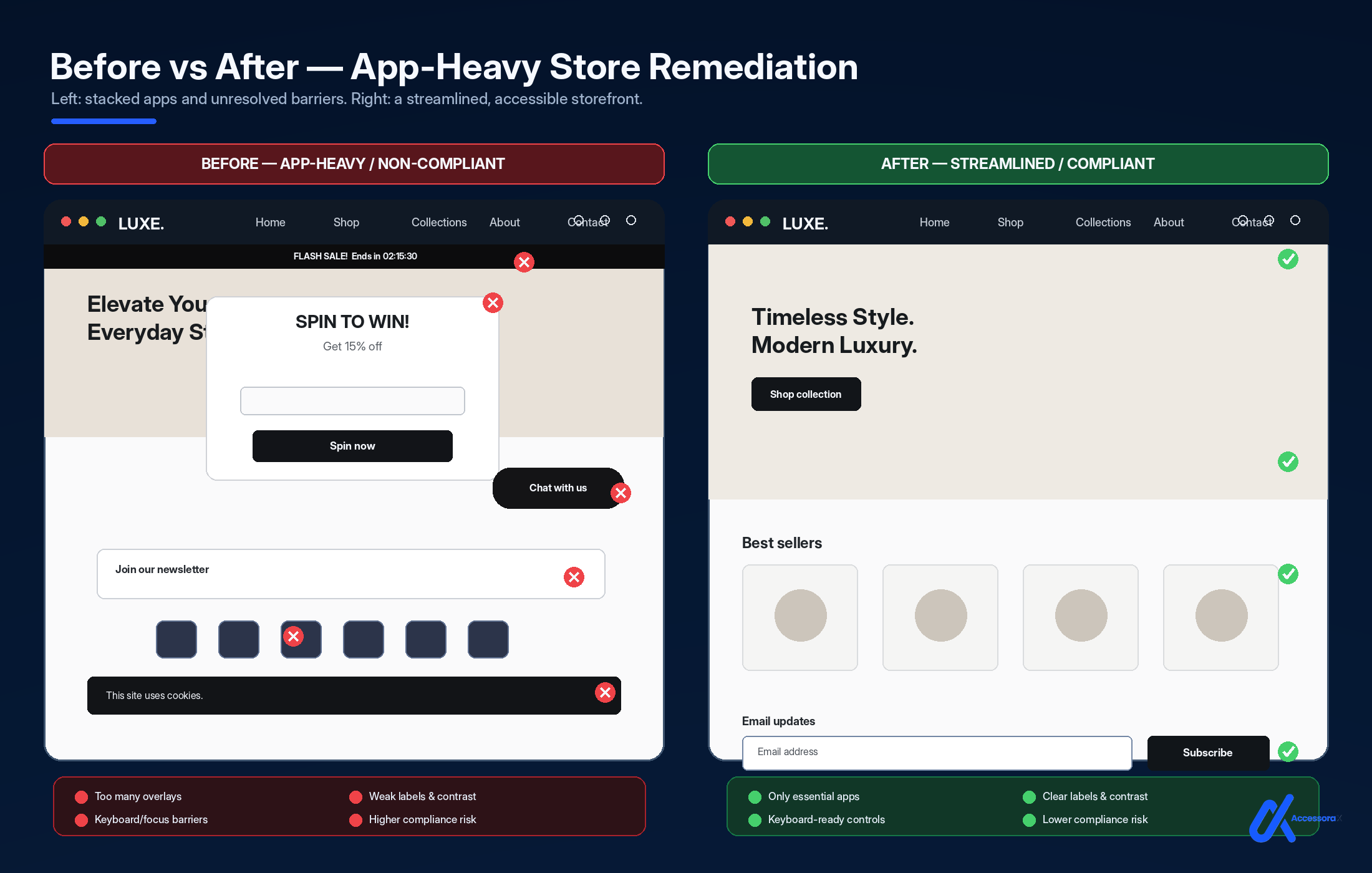
How to Audit Apps BEFORE Installing Them
Step 1: Check App Reviews for Accessibility
Before installing, search app reviews for:
- "accessibility"
- "keyboard"
- "screen reader"
- "WCAG"
- "ADA"
If you find complaints: Skip the app or contact developer.
Step 2: Ask Developers About Accessibility
Email the app developer:
Good developers will have answers. Bad developers will ignore you or make excuses.
Step 3: Test in Development
Before installing on live store:
- Install on test/development store
- Run WAVE accessibility scanner
- Test with keyboard navigation
- Test with screen reader (if possible)
- Check for violations
If violations appear: Either find accessible alternative or uninstall.
Step 4: Check Changelog
Review app's changelog for accessibility improvements, WCAG compliance mentions, and bug fixes for keyboard/screen reader.
Active accessibility work = good sign. Ignored accessibility issues = bad sign.
How to Fix Violations When You Need an App
Sometimes an app is commercially necessary even though it introduces problems. The options below are ordered roughly by cost. For the wider legal context in the US, see our guide to Shopify ADA compliance.
Sometimes you need an app despite accessibility issues.
Option 1: Remove/Minimize the App
Can you live without it? Sometimes removing an app is simpler than fixing its violations.
ROI of app ≤ Cost of accessibility violations? Remove it.
Option 2: Request Accessibility Update
Email developer:
Some developers will fix issues.
Option 3: Hire Professional to Remediate
Can't wait for developer? Hire accessibility professional to:
- Identify app violations
- Implement CSS/JavaScript workarounds
- Test for compliance
- Document fixes
Cost: $500-$2,000 per app. Sometimes worth it if app is critical.
Option 4: Switch to Accessible Alternative
Best option: find an accessible alternative app. Where no alternative exists and the app is essential, native-code accessibility remediation can often resolve the issue without removing the app.
Best Practices: Building an Accessible Shopify App Stack
Step 1: Minimal App Philosophy
Install only apps you REALLY need. More apps = More violations. Each app is a risk.
Step 2: Accessibility as Selection Criteria
When choosing between two apps:
Bad criteria
- "Which has more features?"
Good criteria
- "Which one is more accessible?"
Choose accessible features over flashy features.
Step 3: Regular Auditing
Every quarter (every 3 months):
- Run accessibility audit
- Identify new violations
- Check if new app caused them
- Test each app individually
- Document results
Step 4: Update Apps Regularly
Developers sometimes fix accessibility in updates. Keep apps updated so you get fixes.
Step 5: Document Everything
Keep records of apps installed, known accessibility issues per app, workarounds implemented, fixes applied, and test results.
Keep documentation of testing and remediation as part of your accessibility program.
Accessible App Recommendations (By Category)
Review apps
- Judge.me (improved accessibility)
- Trustpilot (updated widget)
- Most others have violations
Subscription apps
- ReCharge (if properly configured)
- Others require custom remediation
Chat apps
- Zendesk Chat (accessible features available)
- Gorgias (requires fixes)
- Intercom (keyboard issues)
Navigation
- Shopify's built-in navigation (accessible by default)
- Most third-party mega menus require fixes
Galleries
- Shopify's built-in image zoom (accessible)
- Third-party gallery apps often need fixes
These Are the Issues Our Manual Audit Tests
Every app violation mentioned in this guide is tested in our professional Shopify accessibility audits.
We identify
- Which apps are breaking your compliance
- Specific violations each app introduces
- Priority order for fixes
- Cost and timeline for remediation
- Accessible alternatives to problematic apps
Manual audit includes:
- Automated scanning of each installed app
- Keyboard navigation testing per app
- Screen reader testing per app
- Interaction testing
- Code quality review
- Detailed report with fixes
This is the most comprehensive way to understand your app accessibility situation.
Need a professional to audit your apps?
We identify which of your installed apps are breaking WCAG compliance. Includes specific app violations and recommended fixes.
Get your free professional accessibility audit →Summary: Shopify Apps and Accessibility
Key takeaways:
- Apps are responsible for 40-60% of Shopify accessibility violations
- 10 app categories commonly break WCAG compliance (reviews, subscriptions, popups, chat, upsells, filters, navigation, galleries, cookie banners, search)
- Most violations are fixable (either by developer, with workarounds, or by switching apps)
- Responsibility for app-introduced issues sits with the store, even though you did not write the app
- Accessible alternatives usually exist (when you're willing to look)
- Minimal app philosophy = fewer violations (install only what you really need)
- Regular auditing catches problems early (quarterly testing recommended)
- Documentation is your defense (keeps records of what you knew and when)
Shopify Apps and Accessibility FAQ
Can Shopify apps cause WCAG violations?
Yes. Third-party apps can introduce accessibility issues through their JavaScript, HTML, CSS, widgets, modals, forms, navigation, or dynamic content. Testing should be performed after installation and after significant app updates.
How do I know if a Shopify app is accessible?
Review the app's accessibility documentation, ask the developer about keyboard and screen-reader testing, and test the app in your own Shopify environment. An app that works accessibly in isolation may still interact poorly with your theme or other apps.
Can an accessibility scanner detect app problems?
Automated scanners can identify some issues, but they cannot detect every keyboard, focus-management, screen-reader, or interaction problem. Manual testing is still important.
Should I remove a Shopify app that causes accessibility problems?
Not necessarily. Depending on the issue, the problem may be fixable through configuration or code remediation. If the app is not essential and cannot be made accessible, replacing it may be the better option.
How often should Shopify apps be tested for accessibility?
Test after installing or significantly changing an app, and periodically review important customer journeys. Regular testing is particularly important for stores with frequently changing themes, apps, and promotional features.
Ready to fix your app accessibility issues?
We identify problematic apps and either implement fixes, help you switch to accessible alternatives, or configure apps properly for compliance. WCAG-focused remediation can address identified accessibility issues, but ongoing testing is recommended as themes and apps change.
View our Shopify accessibility remediation services →Want to understand the WCAG violations apps create?
Read our complete guide to 15 common WCAG violations →
Learn exactly what breaks compliance and how to spot it.
Final Thought
Shopify apps are powerful. They improve functionality and conversions.
But they often break accessibility.
You don't have to choose between features and compliance.
You can have both.
Start with this guide. Audit your current apps. Choose new apps with accessibility in mind. Remediate violations when they appear.
Your disabled customers will thank you. And your ADA compliance will be protected.