Your Shopify store needs to be ADA compliant.
But you don't know where to start.
You've read about WCAG 2.1. You've heard about keyboard navigation. You're confused about what actually needs to be fixed.
This guide cuts through the confusion. It gives you a step-by-step roadmap to make your Shopify store ADA compliant.
Not theoretical. Not generic. Practical Shopify-specific steps you can actually take.
By the end, you'll have a clear action plan to achieve full WCAG 2.1 Level AA compliance.
Why Your Shopify Store Needs ADA Compliance (Right Now)
Legal Reality
The ADA requires website accessibility.
If your website isn't accessible, you're violating federal law.
Courts use WCAG 2.1 Level AA as the compliance standard.
Non-compliance isn't a "nice to have." It's a legal obligation.
Financial Risk
ADA lawsuits are accelerating:
- 2023: 3,500 digital accessibility lawsuits filed
- 2024: 4,500 digital accessibility lawsuits filed
- 2025: 5,200+ digital accessibility lawsuits filed
- 2026: Trend continues upward
- Settlement: $15,000-$35,000
- Legal fees: $10,000-$25,000
- Plus: Lost revenue, brand damage, time
- Professional audit: $200-$300
- Professional remediation: $199-$500
The math is obvious.
Customer Access
61 million Americans have disabilities.
That's 1 in 5 people.
If your site isn't accessible, you're excluding 20% of the market.
An accessible store = accessible to ALL customers.
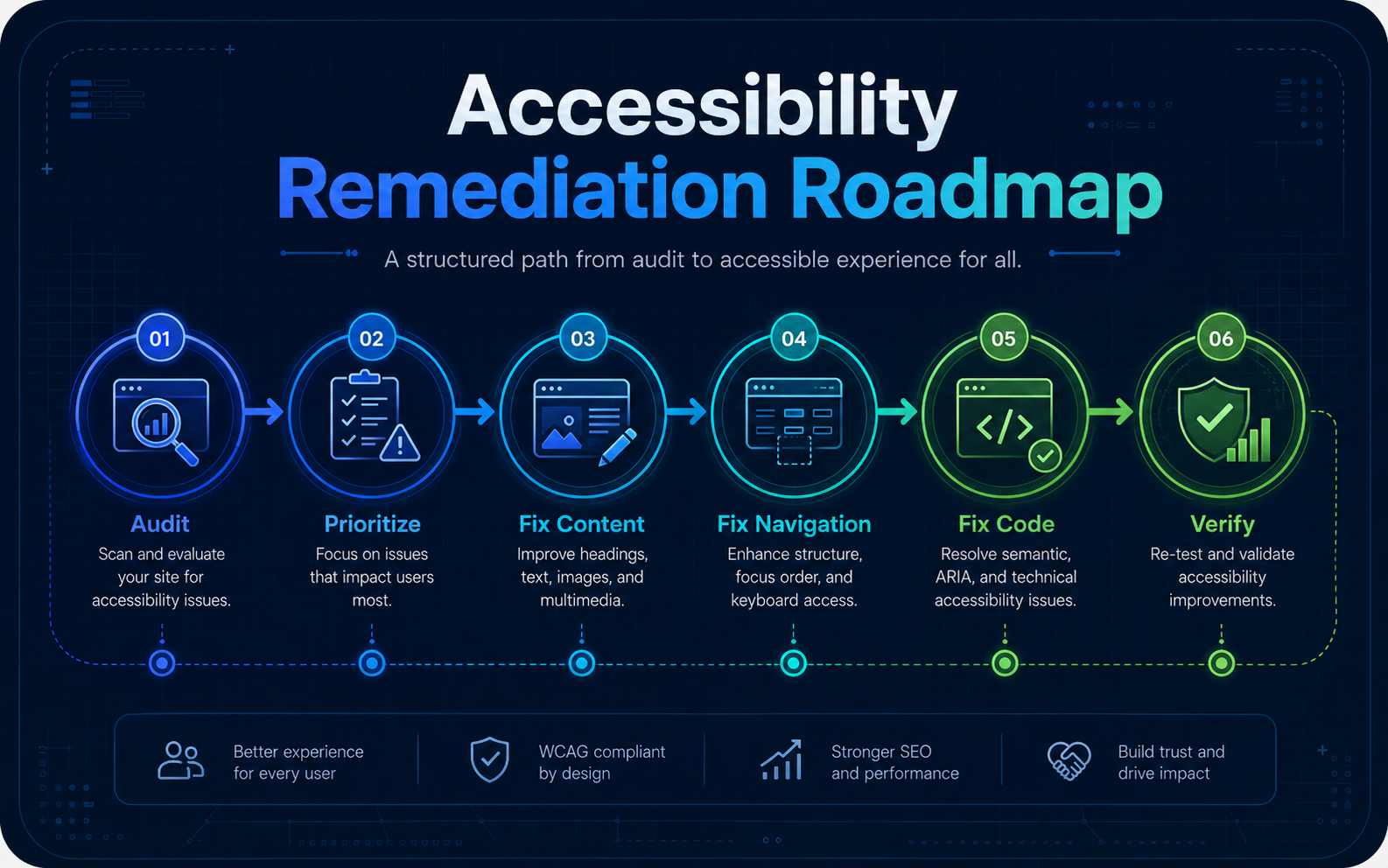
The 6-Step Process to Make Your Shopify Store ADA Compliant
Phase 1: Audit Your Store (Week 1)
Goal: Know exactly what's broken
Step 1.1: Free Quick Audit (1 hour)
Use WAVE accessibility scanner:
- Go to webaim.org/wave
- Install browser extension
- Go to your Shopify store
- Click WAVE icon
- See all red violations
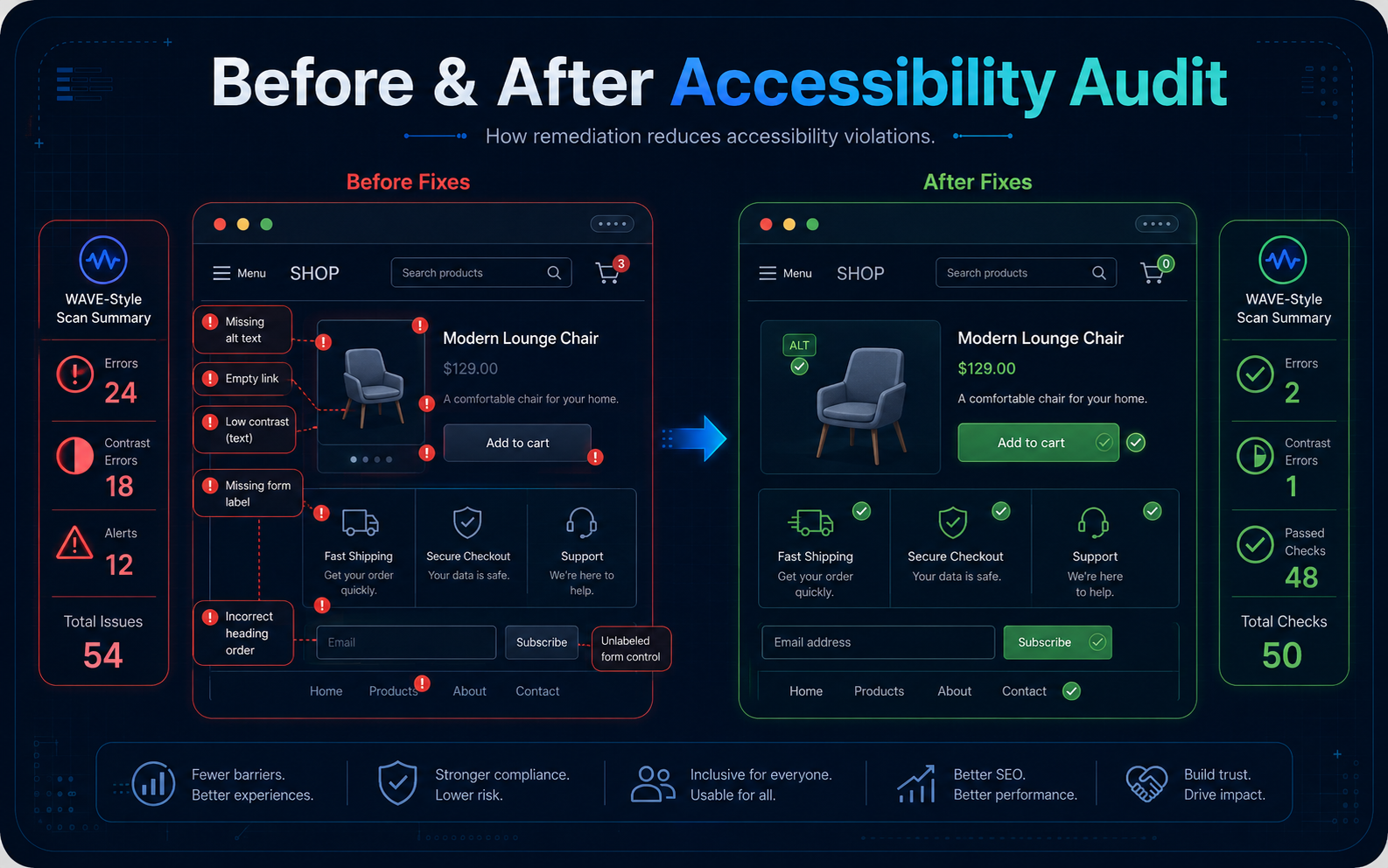
What you'll find:
- Red boxes = critical violations (fix immediately)
- Yellow boxes = warnings (review them)
- Green boxes = good accessibility features
Typical findings on non-compliant Shopify stores
- Missing alt text on images: 40-60 violations
- Color contrast failures: 20-30 violations
- Form labels missing: 10-15 violations
- Keyboard navigation issues: 5-10 violations
- Heading hierarchy problems: 3-8 violations
Step 1.2: Professional Audit (4-8 hours)
WAVE catches obvious issues but misses 20-30% of violations.
Professional audit identifies ALL violations:
- Keyboard navigation testing
- Screen reader compatibility testing
- Color contrast analysis
- Code quality review
- Content structure review
Professional audit results in:
- Detailed violation list
- Severity ratings (critical/high/medium/low)
- Specific fix recommendations
- Priority order
- Timeline estimates
Step 1.3: Create Audit Report
Document your findings:
Phase 2: Prioritize Fixes (Week 1)
Goal: Know which issues to fix first
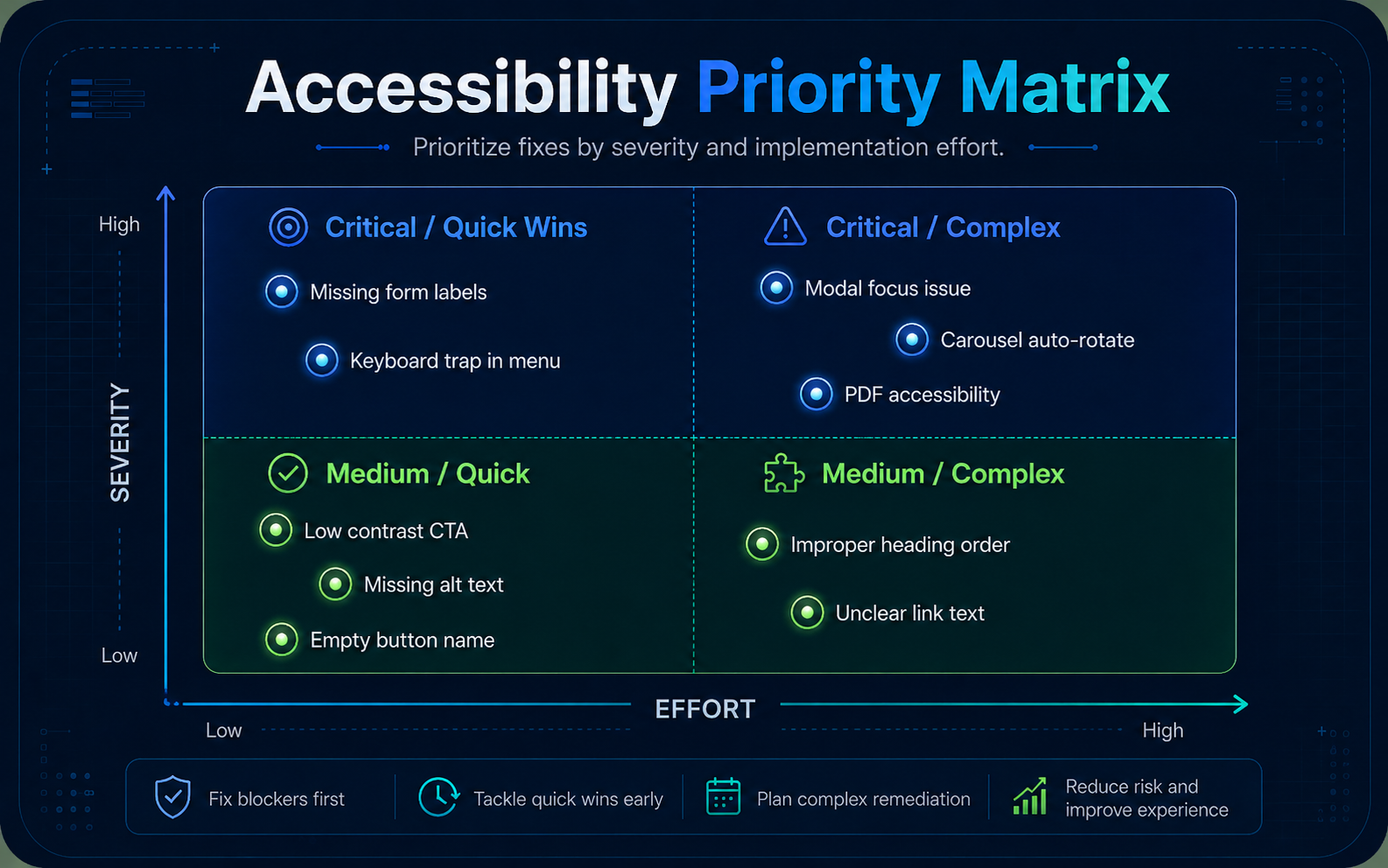
Not all violations are equal.
Some are quick fixes. Some are complex.
Some carry high legal risk. Some are low risk.
Priority Matrix
| Order | Priority + complexity | Example |
|---|---|---|
| Do FIRST | Critical + quick fix | Add alt text to product images (1-2 hours) |
| Do SECOND | Critical + complex fix | Fix keyboard navigation in cart (4-6 hours) |
| Do THIRD | High + quick fix | Fix color contrast (1-3 hours) |
| Do FOURTH | High + complex fix | Customize form labels (3-5 hours) |
| Do LAST | Medium / low | Improve heading hierarchy (2-4 hours) |
Create a fix checklist
- WEEK 1: Add alt text to all product images
- WEEK 1: Fix cart drawer keyboard navigation
- WEEK 2: Fix form field labels on checkout
- WEEK 2: Fix color contrast on product descriptions
- WEEK 3: Make navigation dropdown keyboard accessible
- WEEK 4: Fix heading hierarchy on blog
Phase 3: Fix Content Accessibility (Week 1-2)
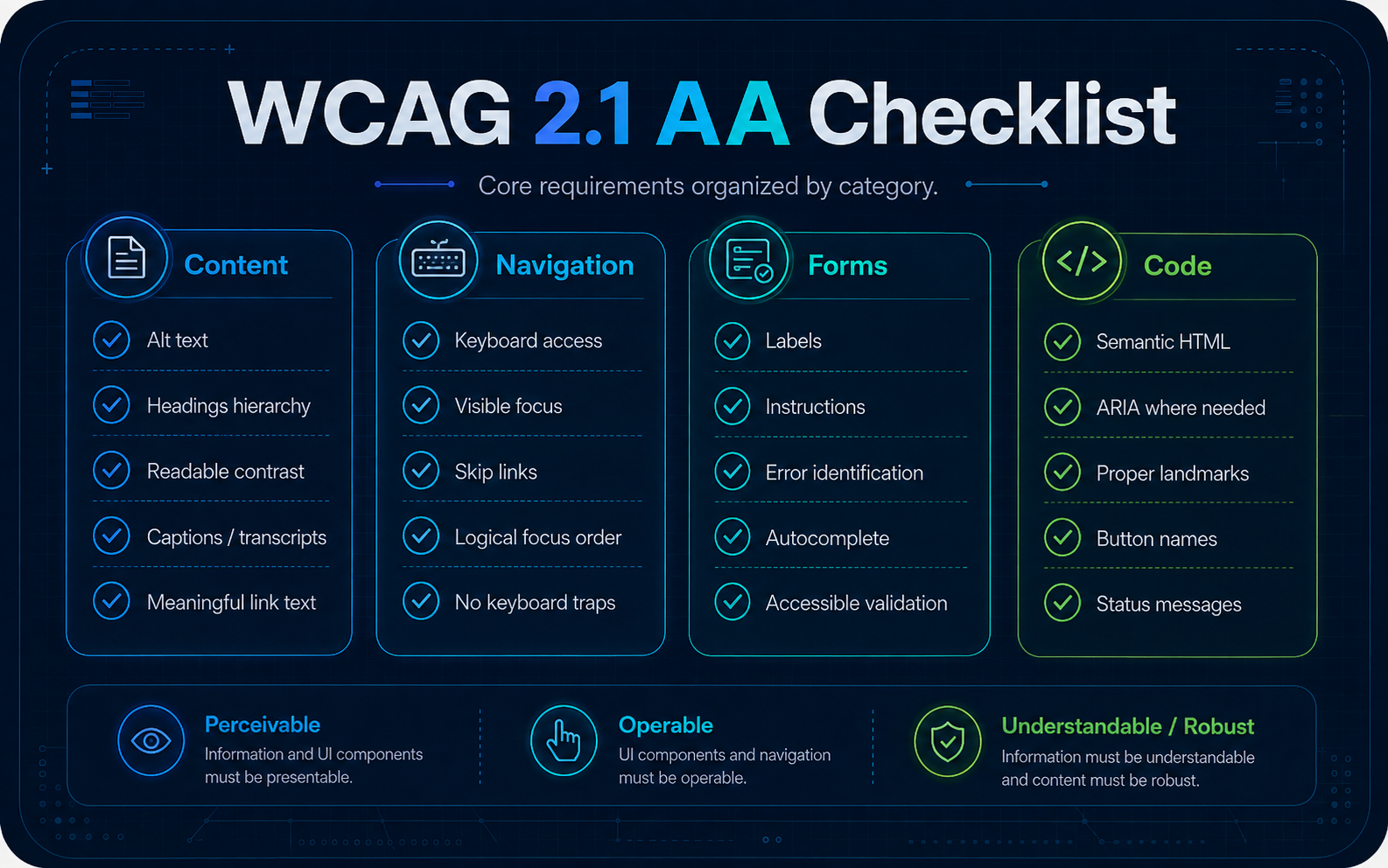
Goal: Make all content perceivable
Fix #1: Add Alt Text to All Product Images
Why it matters:
Blind users can't see images. Without alt text, they don't know what products look like.
Missing alt text = WCAG 1.1.1 violation.
How to fix:
- Go to Shopify Admin → Products
- Click product name
- Scroll to "Media" section
- Click image
- Click "Edit alt text"
- Add descriptive alt text
- Save
What to write:
BAD alt text
- "shirt"
- "IMG_1234"
- "product"
- "image"
GOOD alt text
- "Navy blue 100% cotton crew neck t-shirt, front view, size shown is medium"
- "Navy blue t-shirt showing embroidered white logo, back view"
- "Size guide for navy blue t-shirt showing measurements for XS-XXL"
Why the difference:
Good alt text:
- Describes what users SEE
- Includes color, material, fit
- Shows the view angle
- Helps users make purchasing decisions
How much alt text is enough:
- Minimum: 5-10 words describing the product
- Better: 15-20 words with color, material, fit, angle
- Best: 20-30 words that help users decide to buy
Time estimate: 1-2 hours for typical store (30-50 products)
Fix #2: Add Color Contrast to Text
Why it matters:
Low-vision users can't read low-contrast text.
Low contrast = WCAG 1.4.3 violation.
Minimum requirement
- Normal text: 4.5:1 contrast ratio
- Large text (18pt+): 3:1 contrast ratio
How to check contrast:
- Go to webaim.org/resources/contrastchecker/
- Pick your text color (use eyedropper)
- Pick your background color
- Check if ratio is 4.5:1 or higher
Common Shopify contrast failures
- Light gray text (#999) on white background = 2.8:1 FAILS
- Dark gray text (#666) on light gray (#f5f5f5) = 3.8:1 FAILS
- Light text (#ccc) on medium background (#777) = 2.3:1 FAILS
Common Shopify fixes
- Change text from #999 to #333 (darker gray)
- Change background from #f5f5f5 to white
- Change button text from #ccc to white
Time estimate: 1-3 hours depending on customization level
Fix #3: Add Video Captions
Why it matters:
Deaf users can't watch videos without captions.
Missing captions = WCAG 1.2.1 violation.
How to add captions:
For Shopify product videos:
- Upload video to YouTube
- YouTube auto-generates captions
- Review and edit captions
- Embed YouTube video on Shopify
Tools for video captions:
- YouTube (auto-generates)
- Rev.com ($1.25/minute)
- Kapwing (free online tool)
- Descript (AI captions)
Time estimate: 30 minutes to 1 hour per video
Phase 4: Fix Navigation Accessibility (Week 2-3)
Goal: Make site navigable with keyboard only
Fix #1: Make Cart Drawer Keyboard Accessible
Why it matters:
Keyboard users can't access cart if drawer doesn't support keyboard.
Non-keyboard-accessible cart = WCAG 2.1.1 violation.
How to test:
- Put mouse away
- Press Tab to cart button
- Press Enter to open drawer
- Can you Tab through cart items? (You should see blue outline)
- Can you close with Escape? (You should)
- Does focus return to cart button? (It should)
If any answer is NO: You have a keyboard trap.
How to fix:
This requires code changes. Add focus management:
Time estimate: 1-3 hours (depending on theme complexity)
Fix #2: Make Navigation Dropdown Keyboard Accessible
Why it matters:
Dropdown menus often only work with mouse hover.
Keyboard users can't open them.
Non-keyboard navigation = WCAG 2.1.1 violation.
How to test:
- Put mouse away
- Press Tab to menu item
- Press Enter or Space (should open submenu)
- Can you Tab through submenu items?
- Can you close with Escape?
If any answer is NO: Menu not keyboard accessible.
How to fix:
Time estimate: 2-4 hours
Phase 5: Fix Form Accessibility (Week 3)
Goal: Make all forms accessible
Fix #1: Add Labels to All Form Fields
Why it matters:
Screen reader users need to know what to enter.
Missing labels = WCAG 1.3.1 violation.
How to fix:
For Shopify checkout forms:
- Edit theme code (Actions → Edit Code)
- Find form fields in checkout.liquid
- Add
<label>tags - Link labels to inputs with
forattribute
Time estimate: 1-2 hours
Fix #2: Add Clear Error Messages
Why it matters:
Users need to know what went wrong and how to fix it.
Unclear errors = WCAG 3.3.1 violation.
BAD error message
- "Error"
- "Invalid"
- "Try again"
GOOD error message
- "Email must be in format: name@example.com"
- "Password must be at least 8 characters"
- "Phone number must be 10 digits"
For Shopify:
- Customize error messages in theme settings
- Make them specific and helpful
- Announce them to screen readers
Time estimate: 1-2 hours
Phase 6: Verify Compliance (Week 4)
Goal: Confirm you're WCAG 2.1 Level AA compliant
Step 1: Re-audit with WAVE
- Install WAVE extension
- Scan all main pages
- Look for red violations
- Should see 0 red errors (or very few)
Step 2: Test with Keyboard
For each page:
- Put mouse away
- Tab through entire page
- Try to complete all actions with keyboard
- Verify focus is visible
- Verify no keyboard traps
Step 3: Test with Screen Reader
Download free screen reader (NVDA for Windows, VoiceOver for Mac):
- Open your store
- Listen to how it reads
- Verify: images are described, form fields are labeled, navigation is clear, headings make sense
Step 4: Professional Verification
Get professional audit to confirm compliance:
Get verified compliance audit →
Common Shopify Accessibility Mistakes (And How to Avoid Them)
Mistake #1: Using Accessibility Widgets
Problem: Merchants install "accessibility overlay" widgets thinking they'll solve everything.
Reality:
- Courts have ruled widgets don't actually improve accessibility
- May increase liability (looks like admission of problem)
- False sense of security
Solution: Remove widgets. Fix real accessibility issues instead.
Mistake #2: Ignoring Apps
Problem: Store has 10 apps installed. Some break accessibility.
Reality: You're liable for app violations, even if app developer caused them.
Solution:
- List all installed apps
- Test each one for accessibility
- Remove apps that break accessibility
- Find accessible alternatives
Mistake #3: Forgetting Mobile
Problem: Store is accessible on desktop but not on mobile.
Reality: 50%+ of traffic comes from mobile.
Solution: Test accessibility on mobile devices:
- Touch targets are 44x44 pixels minimum
- Text resizes properly
- Navigation works on mobile
- Forms work without mouse
Mistake #4: Not Documenting Changes
Problem: You fix accessibility issues but don't document it.
Reality: If sued, you have no proof you fixed things.
Solution: Keep records:
- Original audit report
- List of fixes made
- Dates fixes were implemented
- New audit after fixes
- Proof of compliance
DIY vs Professional: Which Should You Choose?
DIY Accessibility Fixes
Pros
- $0 cost
- You learn the process
- You can fix issues gradually
Cons
- Takes 20-50 hours
- Might miss violations (20-30% miss rate)
- No professional documentation (risky legally)
- Requires technical skills
Best if: you have technical background, you have time available, you're okay with incomplete compliance.
Estimated timeline: 4-8 weeks
Professional Remediation
Pros
- 100% WCAG 2.1 AA compliance
- Professional documentation (legal defense)
- Fast (10-14 days)
- Expert quality
- Peace of mind
Cons
- $199-$500 cost
- You don't learn the process
- Requires communication/collaboration
Best if: you want guaranteed compliance, you need legal documentation, you want fast turnaround, you're running e-commerce (high liability).
Estimated timeline: 10-14 days
Hybrid Approach (Recommended)
Do
- Get professional audit ($200-$300)
- Learn what needs to be fixed
- Fix easy items yourself (alt text, color contrast)
- Hire professional for complex fixes (code, structure)
- Professional verifies final compliance
Pros: lower cost than full professional, you understand what's fixed, guaranteed compliance at end, learning opportunity.
Cost: $300-$700 · Estimated timeline: 2-4 weeks
Timeline: How Long This Takes
- Week 1-2: Audit and prioritize
- Week 3-6: Fix content (alt text, contrast)
- Week 7-8: Fix navigation and forms
- Week 9: Test and verify
- Week 1: Audit
- Week 2-3: Professional remediation
- Week 4: Testing and verification
- Week 1: Audit
- Week 2-3: You fix easy items, professional fixes complex
- Week 4: Final verification
The Financial Case for Compliance
Cost of doing nothing
- Risk of lawsuit in next 2 years: 40-50%
- If sued, cost: $25,000-$60,000
- Expected cost: 40-50% × $25,000-$60,000 = $10,000-$30,000
Cost of compliance
- Professional remediation: $199-$500
- One-time cost
- Protects you for years
ROI: $10,000-$30,000 avoided risk vs $200-$500 investment = 2,000%+ ROI
Want an expert to guide you through this process?
We'll review your situation and recommend the best approach for your store. 30 minutes, no obligation.
Book a free consultation →Next Steps to Make Your Shopify Store ADA Compliant
Step 1: Audit your store (this week)
Learn exactly what needs to be fixed.
Step 2: Create fix plan (Week 1)
Prioritize violations by severity and complexity.
Step 3: Execute fixes (Weeks 2-4)
Choose DIY, professional, or hybrid approach.
Step 4: Verify compliance (Week 4)
Re-audit and test to confirm compliance.
Step 5: Maintain compliance (Ongoing)
When you update the site, test for new violations.
Summary: How to Make Your Shopify Store ADA Compliant
Making your Shopify store ADA compliant requires:
- Audit: Know what's broken
- Prioritize: Fix most critical issues first
- Fix content: Alt text, color contrast, captions
- Fix navigation: Keyboard accessibility, forms
- Fix code: ARIA, semantics, structure
- Verify: Confirm full compliance
Cost: $200-$1,000
Time: 2-8 weeks depending on approach
Result: 100% WCAG 2.1 Level AA compliance + legal protection
Start this week. Don't wait.
Ready to achieve full WCAG 2.1 Level AA compliance?
Professional remediation: 100% compliant in 10-14 days. Includes audit, fixes, testing, and documentation. Covers your store legally.
View our Shopify accessibility services →Want to understand the legal requirements?
Read our complete WCAG 2.1 requirements guide →
Learn exactly what courts require for ADA compliance.