You ran an accessibility audit on your Shopify store.
You got the results back.
"15 WCAG violations found."
Now what?
Which violations are critical? Which are easy to fix? Which will hurt your business the most?
This guide walks through the 15 most common WCAG 2.1 violations found on Shopify stores.
Not generic WCAG explanations. Shopify-specific violations. What they look like. Why they happen. What impact they have. How to spot them.
By the end, you'll understand exactly what's wrong with your store and what needs to be fixed first.
Quick Overview: The 15 Most Common Shopify WCAG Violations
Critical Fix first
- Missing Accessible Names
- Keyboard Traps
- Inaccessible Navigation
- Product Variants Not Labeled
- Missing Form Labels
High Fix second
- Incorrect ARIA Implementation
- Missing Focus Indicators
- Modal Accessibility Issues
- Cart Drawer Keyboard Trap
- Inaccessible Carousels
Medium Fix third
- Color Contrast Failures
- Missing Image Alt Text
- Poor Error Messages
- Heading Hierarchy Issues
- Third-Party App Violations
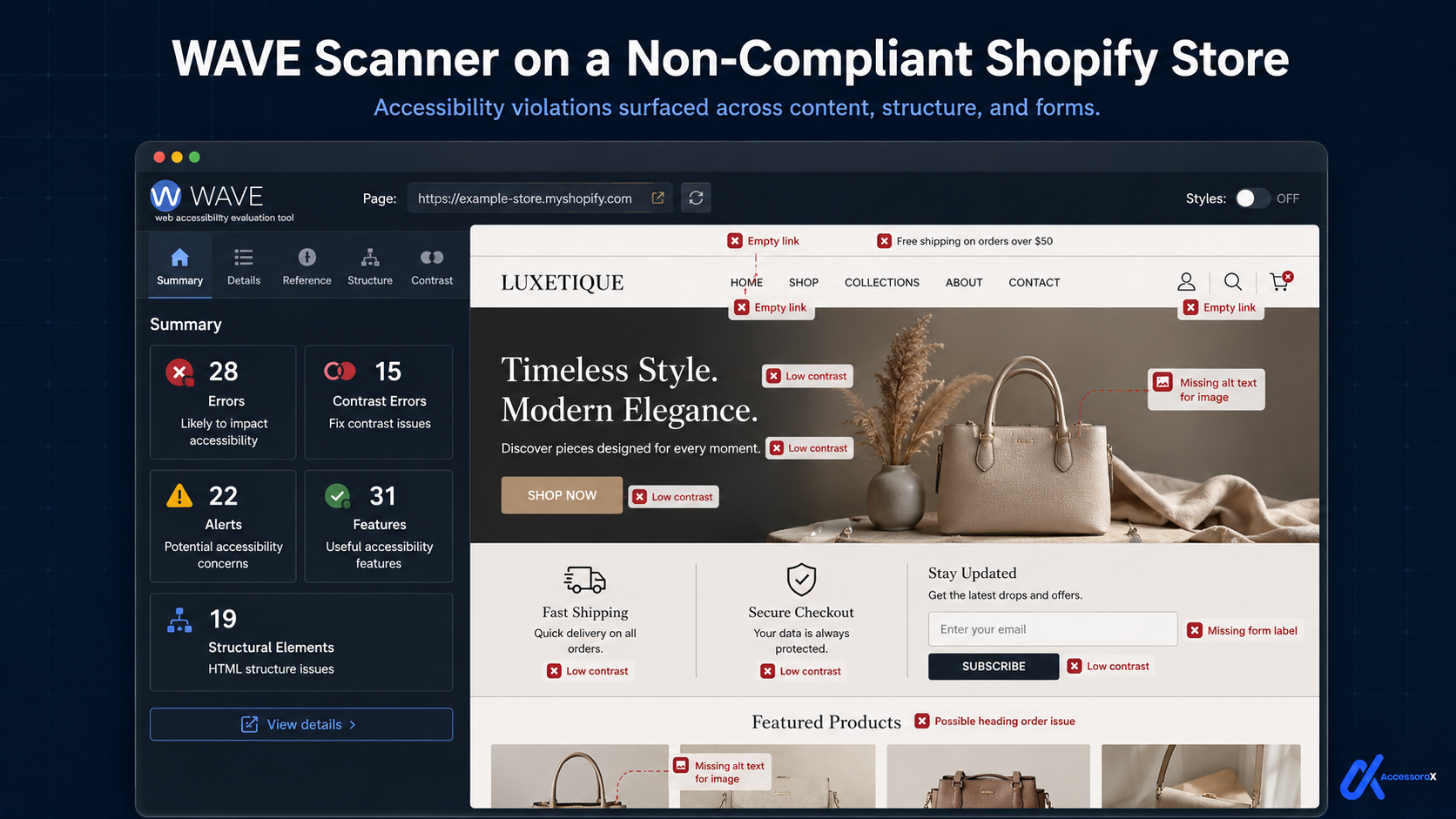
Critical Violations (Fix These FIRST)
Violation #1: Missing Accessible Names (WCAG 4.1.2)
What it is: Interactive elements (buttons, links, form fields) don't have clear, descriptive names that screen readers can read.
Why it happens on Shopify: Developers use icons without text. Or use vague button labels like "Click here" or "Submit".
Why it matters: Screen reader users hear nothing (or just "button") when they encounter a nameless button. They don't know what it does. They can't interact with your store.
Impact on blind users
- Can't find buttons
- Can't click cart icon (doesn't know it's a cart)
- Can't access product actions
- Can't complete checkout
How to spot it:
- Go to your Shopify store
- Right-click on a button with just an icon
- Click "Inspect"
- Look for
aria-labelor text inside button - If neither exists: Missing accessible name
How to fix:
Violation #2: Keyboard Traps (WCAG 2.1.2)
What it is: User presses Tab to navigate, but gets stuck. Can't escape certain elements with keyboard.
Why it happens on Shopify: Custom JavaScript for modals, dropdown menus, or overlays doesn't handle keyboard focus properly.
How it looks:
- User presses Tab to navigate
- Focus gets stuck in a modal or menu
- User presses Tab repeatedly but nothing happens
- User presses Escape but modal doesn't close
- User is trapped
Why it matters: Motor-disabled users navigate with keyboard only. If they get trapped, they can't continue shopping.
Impact on motor-disabled users
- Can't escape product modals
- Can't close popups
- Can't navigate dropdowns
- Can't complete checkout
How to spot it:
- Go to your Shopify store
- Put your mouse away (don't use it)
- Press Tab through entire page
- Try to navigate modal/popup with keyboard
- Try to close with Escape key
- If you get stuck: Keyboard trap
How to fix:
Violation #3: Inaccessible Navigation (WCAG 2.1.1)
What it is: Navigation menus don't work with keyboard. Dropdown menus only work with mouse hover.
Why it happens on Shopify: Theme CSS uses hover states only. JavaScript only listens for mouse clicks.
Why it matters: Keyboard users can't open dropdown menus. Can't see product categories. Can't navigate site.
Impact
- Can't discover products
- Can't navigate categories
- Can't access main menu items
- Can't complete shopping journey
How to spot it:
- Put mouse away
- Press Tab through navigation
- Try to open dropdown with Enter or Space
- If dropdown doesn't open: Inaccessible navigation
How to fix:
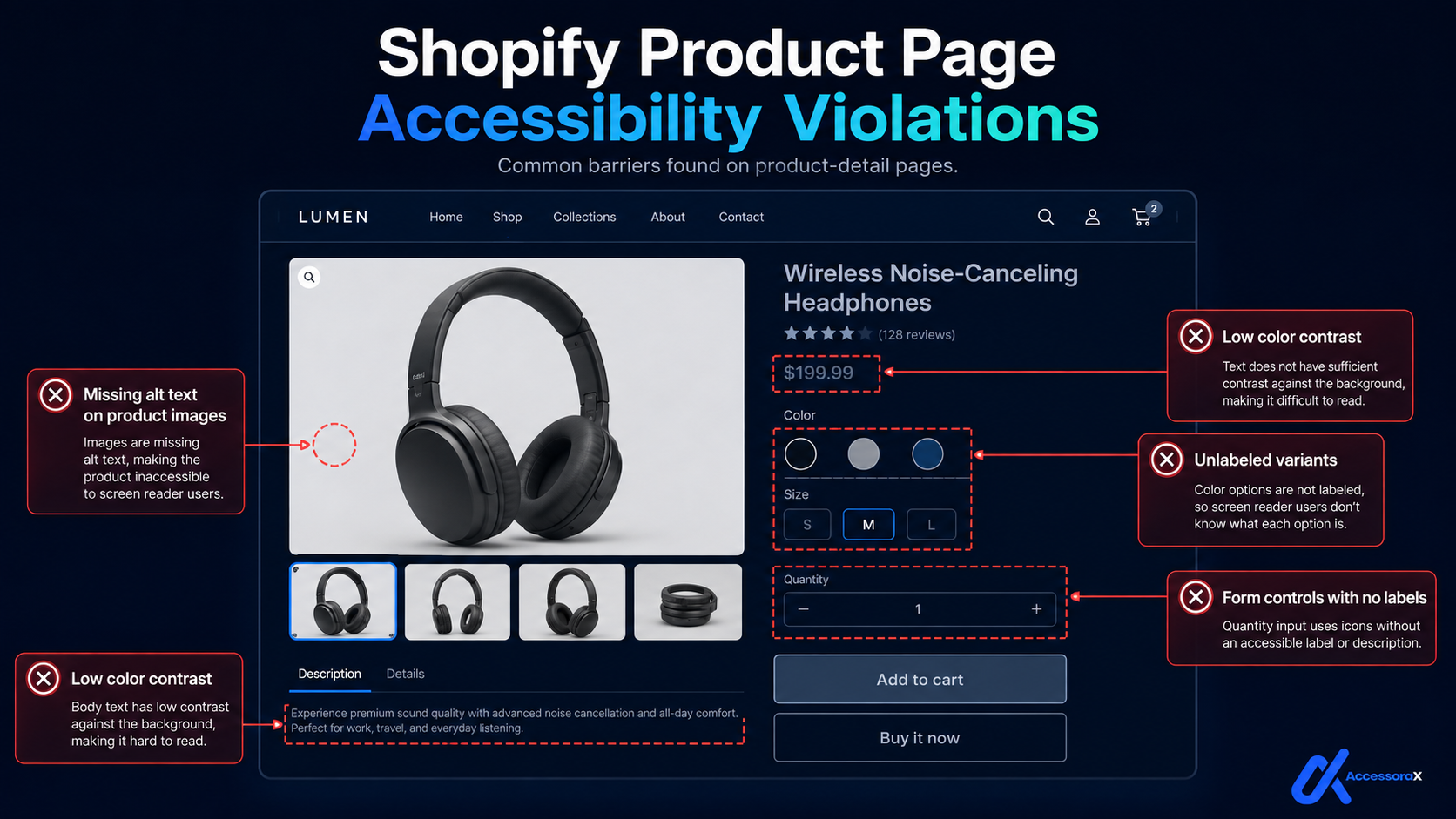
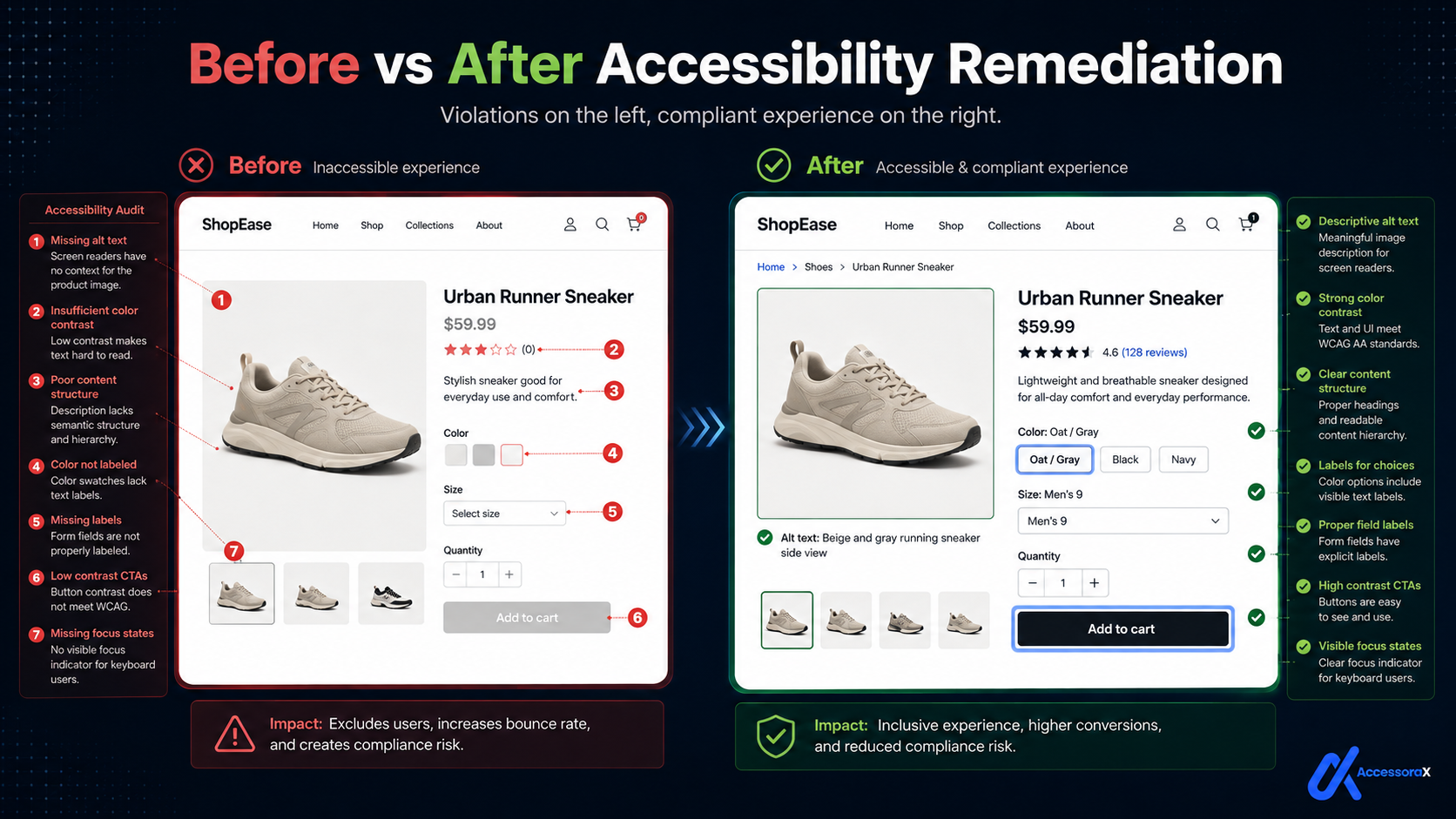
Violation #4: Product Variants Not Labeled (WCAG 1.3.1)
What it is: Size/color options presented as clickable swatches without text labels. Screen reader users don't know what they're clicking.
Why it happens on Shopify: Theme shows only colored boxes or pictures without accompanying text.
Why it matters: Screen reader users hear nothing when they encounter color swatches. Colorblind users can't tell colors apart. Users don't know what they're selecting.
Impact
- Can't select size
- Can't select color
- Can't select variant
- Can't complete purchase
How to spot it: Go to a product page, look at the size/color selector. If it's only boxes or swatches with no text: unlabeled variants.
How to fix:
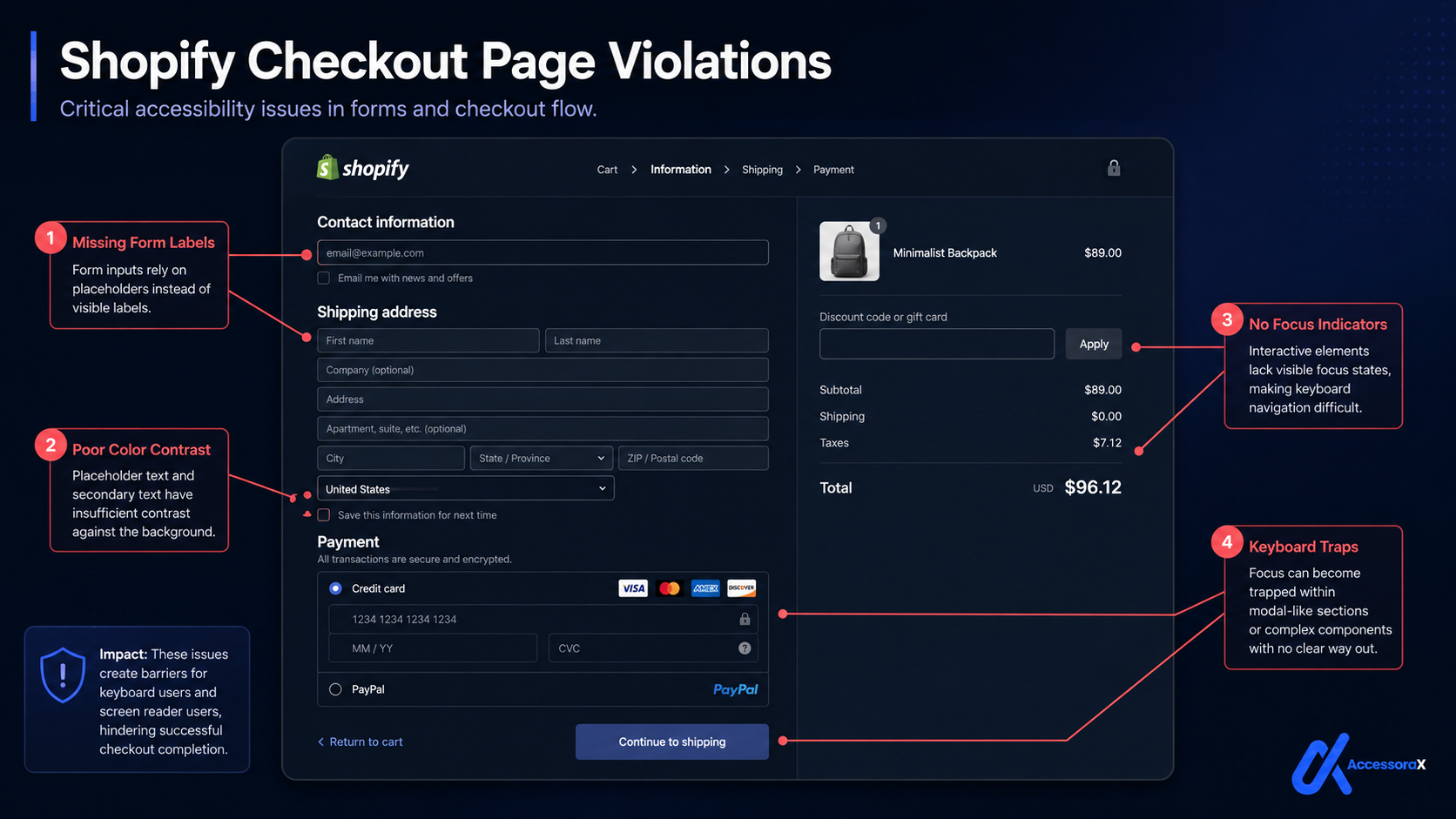
Violation #5: Missing Form Labels (WCAG 1.3.1)
What it is: Form fields don't have associated labels. Screen reader users don't know what to enter.
Why it happens on Shopify: Developers use placeholder text instead of labels. Or forgot to add labels entirely.
Why it matters: Screen reader users can't hear what field they're in. Can't complete forms. Can't checkout.
Impact
- Can't fill checkout form
- Can't enter shipping address
- Can't enter payment info
- Can't complete purchase
How to spot it:
- Go to checkout page
- Right-click on form field
- Inspect code
- Look for
<label>tag with matchingforattribute - If missing: Form label violation
How to fix:
High Violations (Fix These SECOND)
Violation #6: Incorrect ARIA Implementation (WCAG 4.1.2)
What it is: ARIA attributes are used incorrectly, confusing screen readers instead of helping.
Why it happens on Shopify: Developers add ARIA without understanding how it works. Or copy-paste incorrect implementations.
Why it matters: Incorrect ARIA confuses screen readers. Users hear wrong information. Buttons don't work as expected.
Impact
- Screen readers announce wrong information
- Users click wrong buttons
- Functionality doesn't work
- Navigation fails
How to fix: Use semantic HTML first (button, link, form) because they have implicit roles. Only use ARIA when HTML can't do the job.
Violation #7: Missing Focus Indicators (WCAG 2.4.7)
What it is: Keyboard users can't see which element currently has focus (no visible outline/highlight).
Why it happens on Shopify: Developers remove default focus outline with CSS because it looks ugly.
Why it matters: Keyboard users navigate by pressing Tab. They need to see which element is currently focused. Without visible focus, they're lost.
Impact
- Can't tell which button is selected
- Can't navigate effectively
- Can't complete actions
- Confusing experience
How to fix:
Violation #8: Modal Accessibility Issues (WCAG 2.1.2)
What it is: Modal dialogs (popups, lightboxes) don't trap focus properly, announce to screen readers, close with Escape key, or return focus after closing.
Why it happens on Shopify: Modals built with custom JavaScript without accessibility in mind.
How to spot it:
- Click button that opens modal
- Modal appears
- Press Tab: does focus move into modal?
- Can you close with Escape key?
- After closing, does focus return to button?
If any answer is NO: Modal accessibility issue
How to fix:
Violation #9: Cart Drawer Keyboard Trap (WCAG 2.1.2)
What it is: Cart drawer opens but keyboard focus stays outside it. Users can't Tab into the drawer.
Specific case of keyboard traps but common enough to highlight.
Why it happens: Cart drawer built with JavaScript that doesn't manage focus.
How to fix:
Violation #10: Inaccessible Carousels (WCAG 2.1.1)
What it is: Image carousels/sliders can't be controlled with keyboard. Only work with mouse.
Why it happens: Carousel JavaScript only handles mouse clicks on prev/next arrows.
How to fix:
Medium Violations (Fix These THIRD)
Violation #11: Color Contrast Failures (WCAG 1.4.3)
What it is: Text color too similar to background. Low-vision users can't read it.
Standard: Text must have 4.5:1 contrast ratio minimum
Common Shopify failures
- Light gray text (#999) on white (#fff) = 2.8:1 FAILS
- Dark gray text (#666) on light gray (#f5f5f5) = 3.8:1 FAILS
How to fix: Change text to darker color. For measured examples on buttons, prices, sale badges and text over images, see our guide to color contrast accessibility for Shopify stores.
Violation #12: Missing Image Alt Text (WCAG 1.1.1)
What it is: Images have no alternative text. Blind users can't see products.
Common on Shopify: Product images, hero images, banners
How to fix:
Violation #13: Poor Error Messages (WCAG 3.3.1)
What it is: Error messages don't explain what went wrong.
User types invalid email, gets message: "Error". What error? How do they fix it?
How to fix:
Violation #14: Heading Hierarchy Issues (WCAG 1.3.1)
What it is: Headings don't follow logical hierarchy (H1 → H2 → H3). Jumps from H1 directly to H3. Screen reader users get confused.
How to fix:
Violation #15: Third-Party App Violations (WCAG multiple)
What it is: Installed Shopify apps introduce accessibility violations.
Common culprits
- Pop-up apps (keyboard traps)
- Review apps (color contrast fails)
- Live chat (focus management broken)
- Discount code overlays
How to fix: Test every app. Remove apps that break accessibility. Find accessible alternatives.
These Are the Issues Our Manual Shopify Accessibility Audit Tests
Every violation above is what we test for in our professional accessibility audits.
Why manual testing matters:
Automated tools catch
70% of violations
- Obvious issues only
Manual testing catches
95%+ of violations
- Complex interactions included
Manual testing includes
- Keyboard navigation testing
- Screen reader compatibility
- Color contrast analysis
- Code quality review
- Content structure review
- Interaction testing
- Mobile accessibility
- App compatibility checking
Our audit process
- Automated scan: finds obvious violations
- Keyboard testing: tests keyboard navigation
- Screen reader testing: tests with NVDA/JAWS
- Manual code review: checks implementation quality
- Detailed report: lists all violations with fixes
- Remediation guidance: priority + timeline
Priority: Which to Fix First
Week 1-2 Critical
- Missing form labels
- Keyboard traps
- Inaccessible navigation
- Product variants without labels
- Missing accessible names
Fix these first because they block access to core functionality.
Week 2-3 High
- Incorrect ARIA
- Missing focus indicators
- Modal accessibility
- Cart drawer issues
- Inaccessible carousels
Week 3-4 Medium
- Color contrast
- Missing alt text
- Poor error messages
- Heading hierarchy
- Third-party app violations
Summary: The 15 Most Common Shopify WCAG Violations
These violations are found on 90%+ of non-compliant Shopify stores.
Most are easy to fix (1-4 hours each). Some require professional help. All are critical for ADA compliance.
Know which violations YOUR store has?
Professional audit identifies all 15 violations (and more) specific to your site. Includes specific fix recommendations and timeline.
Get your free professional accessibility audit →Next Steps
- Know your violations: Get an audit
- Prioritize fixes: Critical violations first
- Execute remediation: Fix issues according to priority
- Verify compliance: Re-audit after fixes
- Maintain: Test quarterly for new violations
This process takes 2-4 weeks with professional help. Or 4-8 weeks if doing it yourself.
The sooner you start, the sooner you're compliant.
Ready to fix these violations?
We identify all violations and implement fixes. 100% WCAG 2.1 AA compliance in 10-14 days. Includes documentation proving compliance.
Get comprehensive Shopify accessibility remediation →Want to understand the legal requirements?
Read our complete WCAG 2.1 requirements guide →
This explains exactly what courts require for ADA compliance.
Final Thought
These 15 violations account for 90% of accessibility problems on Shopify stores.
They're also 90% fixable.
Stop worrying. Start fixing.
Your disabled customers will thank you.